


Page 62 - CC2019_PS_Look_Inside
P. 62
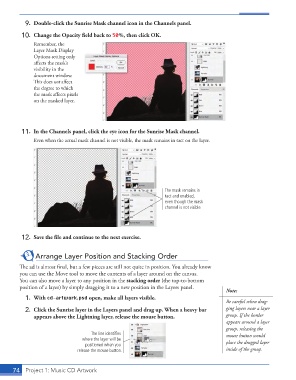
9.  Double-click the Sunrise Mask channel icon in the Channels panel.

               10.  Change the Opacity fi eld back to 50%, then click OK.
                   Remember, the
                   Layer Mask Display
                   Options setting only
                   aff ects the mask’s
                   visibility in the
                   document window.
                   Th  is does not aff ect
                   the degree to which
                   the mask aff ects pixels
                   on the masked layer.


               11.  In the Channels panel, click the eye icon for the Sunrise Mask channel.
                   Even when the actual mask channel is not visible, the mask remains in tact on the layer.


                                                                      The mask remains in
                                                                      tact and enabled,
                                                                      even though the mask
                                                                      channel is not visible.


               12.  Save the fi le and continue to the next exercise.


                    Arrange Layer Position and Stacking Order
              Th  e ad is almost fi nal, but a few pieces are still not quite in position. You already know
              you can use the Move tool to move the contents of a layer around on  the canvas.
              You can also move a layer to any position in the  stacking order (the top-to-bottom
              position of a layer) by simply dragging it to a new position in the  Layers panel.
                                                                                             Note:
               1. With cd-artwork.psd open, make all layers visible.
                                                                                             Be careful when drag-
               2.  Click the Sunrise layer in the Layers panel and drag up. When a heavy bar   ging layers near a layer
                   appears above the Lightning layer, release the mouse button.              group. If the border
                                                                                             appears around a layer
                                                                                             group, releasing the
                                         The line identifies                                 mouse button would
                                      where the layer will be                                place the dragged layer
                                       positioned when you
                                    release the mouse button.                                inside of the group.


           74     Project 1: Music CD Artwork

