


Page 60 - CC2019_PS_Look_Inside
P. 60
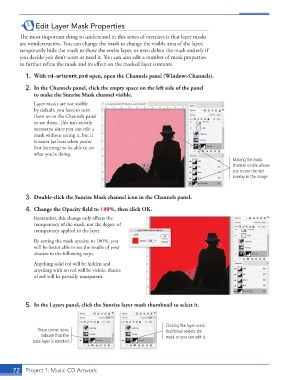
Edit Layer Mask Properties

              Th  e most important thing to understand in this series of exercises is that layer masks
              are nondestructive. You can change the mask to change the  visible area of the layer,
              temporarily hide the mask to show the entire layer, or even delete the mask entirely if
              you decide you don’t want or need it. You can also edit a number of mask properties
              to further refi ne the mask and its eff ect on the masked layer contents.

               1. With cd-artwork.psd open, open the Channels panel (Window>Channels).

               2.  In the  Channels panel, click the empty space on the left side of the panel
                   to make the Sunrise Mask channel visible.
                   Layer masks are not visible
                   by default; you have to turn
                   them on in the Channels panel
                   to see them. Th  is isn’t strictly
                   necessary, since you can edit a
                   mask without seeing it, but it
                   is easier (at least when you’re
                   fi rst learning) to be able to see
                   what you’re doing.
                                                                                                Making the mask
                                                                                                channel visible allows
                                                                                                you to see the red
                                                                                                overlay in the image.


               3.  Double-click the Sunrise Mask channel icon in the Channels panel.
               4.  Change the Opacity fi eld to 100%, then click OK.

                   Remember, this change only aff ects the
                   transparency of the mask, not the degree of
                   transparency applied to the layer.
                   By setting the mask opacity to 100%, you
                   will be better able to see the results of your
                   choices in the following steps.

                   Anything solid red will be hidden and
                   anything with no red will be visible; shades
                   of red will be partially transparent.


               5.  In the Layers panel, click the Sunrise layer mask thumbnail to select it.


                                                                      Clicking the layer mask
                     These corner icons                               thumbnail selects the
                      indicate that the                               mask so you can edit it.
                   base layer is selected.


           72     Project 1: Music CD Artwork

