


Page 58 - CC2019_PS_Look_Inside
P. 58
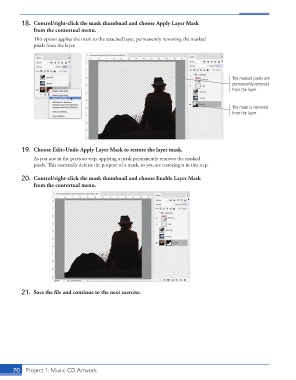
18.  Control/right-click the mask thumbnail and choose Apply Layer Mask
                   from the contextual menu.
                   This option applies the mask to the attached layer, permanently removing the masked
                   pixels from the layer.


                                                                                               The masked pixels are
                                                                                               permanently removed
                                                                                               from the layer.


                                                                                               The mask is removed
                                                                                               from the layer.


               19.  Choose Edit>Undo Apply Layer Mask to restore the layer mask.
                   As you saw in the previous step, applying a mask permanently removes the masked
                   pixels. This essentially defeats the purpose of a mask, so you are restoring it in this step.

               20.  Control/right-click the mask thumbnail and choose Enable Layer Mask
                   from the contextual menu.


               21.  Save the file and continue to the next exercise.


           70   Project 1: Music CD Artwork

