


Page 59 - CC2019_PS_Look_Inside
P. 59
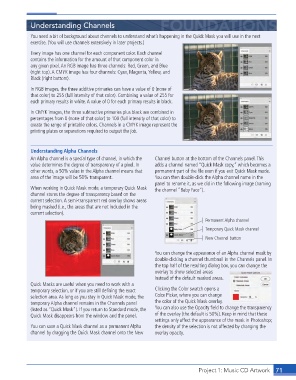
Understanding Channels

                  You need a bit of background about  channels to understand what’s happening in the Quick Mask you will use in the next
                  exercise. (You will use channels extensively in later projects.)
                  Every image has one channel for each component color. Each channel
                  contains the information for the amount of that component color in
                  any given pixel. An  RGB image has three channels: Red, Green, and Blue
                  (right top). A  CMYK image has four channels: Cyan, Magenta, Yellow, and
                  Black (right bottom).

                  In RGB images, the three  additive primaries can have a value of 0 (none of
                  that color) to 255 (full intensity of that color). Combining a value of 255 for
                  each primary results in white. A value of 0 for each primary results in black.
                  In CMYK images, the three  subtractive primaries plus black are combined in
                  percentages from 0 (none of that color) to 100 (full intensity of that color) to
                  create the range of printable colors. Channels in a CMYK image represent the
                  printing plates or separations required to output the job.


                  Understanding Alpha Channels
                    An Alpha channel is a special type of channel, in which the   Channel button at the bottom of the Channels panel. This
                  value determines the degree of transparency of a pixel. In   adds a channel named “Quick Mask copy,” which becomes a
                  other words, a 50% value in the Alpha channel means that   permanent part of the fi le even if you exit Quick Mask mode.
                  area of the image will be 50% transparent.      You can then double-click the Alpha channel name in the
                                                                  panel to rename it, as we did in the following image (naming
                  When working in Quick Mask mode, a temporary Quick Mask   the channel “Baby Face”).
                  channel stores the degree of transparency based on the
                  current selection. A semi-transparent red overlay shows areas
                  being masked (i.e., the areas that are not included in the
                  current selection).
                                                                                     Permanent Alpha channel
                                                                                     Temporary Quick Mask channel

                                                                                     New Channel button

                                                                  You can change the appearance of an Alpha channel mask by
                                                                  double-clicking a channel thumbnail in the  Channels panel. In
                                                                  the top half of the resulting dialog box, you can change the
                                                                  overlay to show selected areas
                                                                  instead of the default masked areas.
                  Quick Masks are useful when you need to work with a
                  temporary selection, or if you are still defi ning the exact   Clicking the Color swatch opens a
                  selection area. As long as you stay in Quick Mask mode, the   Color Picker, where you can change
                  temporary Alpha channel remains in the Channels panel   the color of the Quick Mask overlay.
                  (listed as “Quick Mask”). If you return to Standard mode, the   You can also use the Opacity fi eld to change the transparency
                  Quick Mask disappears from the window and the panel.  of the overlay (the default is 50%). Keep in mind that these
                                                                  settings only affect the appearance of the mask in Photoshop;
                  You can save a Quick Mask channel as a permanent Alpha   the density of the selection is not affected by changing the
                  channel by dragging the Quick Mask channel onto the  New   overlay opacity.


                                                                                    Project 1: Music CD Artwork  71

