


Page 33 - CC2019_PS_Look_Inside
P. 33
5.  With the marching ants active, choose Select> Modify>Feather.
                      Photoshop off ers a number of options for  modifying an exiting
                      selection marquee.
                         • Select> Grow expands the selection to include all adjacent pixels
                           that fall within the tolerance defi ned for the  Magic Wand tool.
                         • Select>Similar expands the selection to include all pixels
                           throughout the image that fall within the tolerance range, even if
                           they are not adjacent to the active selection.
                         • Select> Transform Selection shows bounding-box handles
                           around the selection marquee, which you can use to transform
                           the selection as you would transform layer content.

                      In the Select>Modify menu:
                         •   Border creates a selection of a defi ned number of pixels around the edge of the
                           active marquee.
                         •   Smooth helps to clean up stray pixels at the edge of a selection. Within
                           a defi ned radius from the selection edge, pixels with less than half of the   Note:
                           surrounding pixels are excluded from the selection.
                                                                                                You could also create a
                         •   Expand and  Contract enlarge and shrink, respectively, a selection by a defi ned   feathered selection by
                           number of pixels.                                                    typing in the Feather
                         •   Feather creates a blended edge to the active selection area.       fi eld of the Options bar
                                                                                                before drawing the
                  6.  In the resulting dialog box, type 100 in the Feather Radius fi eld. Make   selection marquee.
                      sure  Apply Eff ect at Canvas Bounds is not checked, then click OK.
                      Feathering means to soften the edge of a selection so the image           Keep in mind, however,
                      blends into the background instead of showing a sharp line                that if you draw a feath-
                      around the edge. Th  e  Feather Radius defi nes the distance from         ered selection (using the
                      solid to transparent.                                                     tool option setting), you
                                                                                                can’t undo the feather
                      If the Apply Eff ect... check box is active, the feathering will be applied at the top and   without also undoing
                      right edges of the canvas, where you dragged past the image edge while making the
                      selection. You want these edges to remain hard, so the option should remain unchecked.  the selection area.

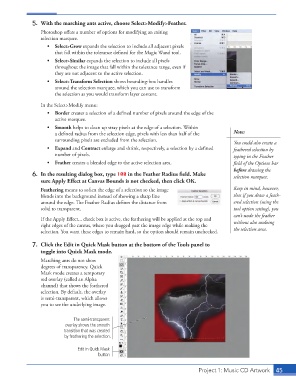
                  7.  Click the  Edit in Quick Mask button at the bottom of the Tools panel to
                      toggle into  Quick Mask mode.

                      Marching ants do not show
                      degrees of transparency. Quick
                      Mask mode creates a temporary
                      red overlay (called an  Alpha
                      channel)  that shows the feathered
                      selection. By default, the overlay
                      is semi-transparent, which allows
                      you to see the underlying image.


                                   The semi-transparent
                               overlay shows the smooth
                               transition that was created
                               by feathering the selection.

                                    Edit in Quick Mask
                                            button


                                                                                    Project 1: Music CD Artwork  45

