


Page 29 - CC2019_PS_Look_Inside
P. 29
Copy and Paste Selected Pixels

                 Like many processes in Photoshop, there are various methods for compositing
                 multiple images into a single file. In this exercise, you will use the most basic
                 selection tool — the Rectangle Marquee tool.                                   Note:
                                                                                                When you created the
                   1.  With cd-artwork.psd open, choose View>Fit on Screen to show the          background file for
                      entire image centered in the document window.                             this project, you cre-

                   2.  Open the file Tornado.jpg from your WIP>Music folder.                    ated a raster image that
                                                                                                contains pixels. Digital
                      If you see a profile mismatch warning when opening the files for this project, choose   photographs and scans
                      the option to use the embedded profile. Color management will be explained in   are also pixel-based,
                      Project 3: Museum Image Correction.
                                                                                                which is why you use
                   3.  With Tornado.jpg the active file in the document window, open the Image   Photoshop to edit and
                      Size dialog box (Image>Image Size).                                       manipulate those types
                                                                                                of files.
                      This image is only
                      150 ppi, but it has a
                      physical size much
                      larger than the
                      defined size for the
                      CD artwork. As with                                                       Note:
                      the original image,
                      the principle of                                                          You can press Com-
                      effective resolution                                                      mand-Option-I/Con-
                      might make this                                                           trol-Alt-I to open the
                      image usable in the                                                       Image Size dialog box.
                      composite ad.

                   4.  Click Cancel to close the Image Size dialog box.

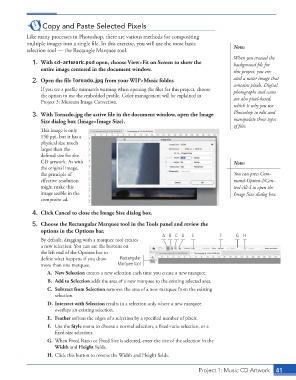
                   5.  Choose the Rectangular Marquee tool in the Tools panel and review the
                      options in the Options bar.
                                                                     A B C D    E          F     G  H
                      By default, dragging with a marquee tool creates
                      a new selection. You can use the buttons on
                      the left end of the Options bar to
                      define what happens if you draw   Rectangular
                      more than one marquee.       Marquee tool
                         A.  New Selection creates a new selection each time you create a new marquee.
                         B.  Add to Selection adds the area of a new marquee to the existing selected area.
                         C.  Subtract from Selection removes the area of a new marquee from the existing
                           selection.
                         D. Intersect with Selection results in a selection only where a new marquee
                           overlaps an existing selection.
                         E.  Feather softens the edges of a selection by a specified number of pixels.
                         F.  Use the Style menu to choose a normal selection, a fixed-ratio selection, or a
                           fixed-size selection.
                         G.  When Fixed Ratio or Fixed Size is selected, enter the size of the selection in the
                           Width and Height fields.
                         H. Click this button to reverse the Width and Height fields.


                                                                                  Project 1: Music CD Artwork   41

