


Page 36 - CC2019_PS_Look_Inside
P. 36
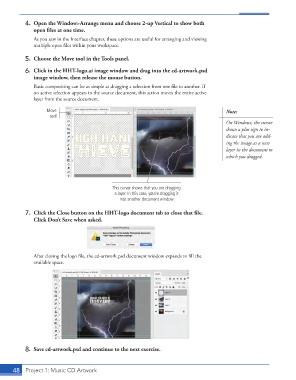
4.  Open the Window>Arrange menu and choose 2-up Vertical to show both
                   open fi les at one time.
                   As you saw in the Interface chapter, these options are useful for arranging and viewing
                   multiple open fi les within your workspace.

               5.  Choose the  Move tool in the Tools panel.

               6.  Click in the HHT-logo.ai image window and drag into the cd-artwork.psd
                   image window, then release the mouse button.
                   Basic compositing can be as simple as dragging a selection from one fi le to another. If
                   no active selection appears in the source document, this action moves the entire active
                   layer from the source document.

                        Move                                                                 Note:
                         tool
                                                                                             On Windows, the cursor
                                                                                             shows a plus sign to in-
                                                                                             dicate that you are add-
                                                                                             ing the image as a new
                                                                                             layer in the document to
                                                                                             which you dragged.


                                                 This cursor shows that you are dragging
                                                  a layer. In this case, you’re dragging it
                                                    into another document window.

               7.  Click the Close button on the HHT-logo document tab to close that fi le.
                   Click Don’t Save when asked.


                   After closing the logo fi le, the cd-artwork.psd document window expands to fi ll the
                   available space.


               8.  Save cd-artwork.psd and continue to the next exercise.


           48     Project 1: Music CD Artwork

