


Page 30 - CC2019_PS_Look_Inside
P. 30
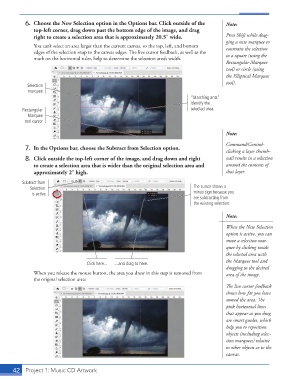
6.  Choose the  New Selection option in the Options bar. Click outside of the   Note:
                   top-left corner, drag down past the bottom edge of the image, and drag
                   right to create a selection area that is approximately 20.5″ wide.        Press Shift while drag-
                                                                                             ging a new marquee to
                   You can’t select an area larger than the current canvas, so the top, left, and bottom   constrain the selection
                   edges of the selection snap to the canvas edges. Th  e live cursor feedback, as well as the   to a square (using the
                   mark on the horizontal ruler, help to determine the selection area’s width.
                                                                                               Rectangular Marquee
                                                                                             tool) or circle (using
                                                                                             the  Elliptical Marquee
                                                                                             tool).
                 Selection
                 marquee
                                                                               “Marching ants”
                                                                               identify the
               Rectangular                                                     selected area.
                 Marquee
                tool cursor
                                                                                             Note:

                                                                                             Command/Control-
               7.  In the Options bar, choose the  Subtract from Selection option.           clicking a layer thumb-
               8.  Click outside the top-left corner of the image, and drag down and right   nail results in a selection
                   to create a selection area that is wider than the original selection area and   around the contents of
                   approximately 2″ high.                                                    that layer.
               Subtract from
                  Selection                                                      The cursor shows a
                   is active.                                                    minus sign because you
                                                                                 are subtracting from
                                                                                 the existing selection.

                                                                                             Note:

                                                                                             When the New Selection
                                                                                             option is active, you can
                                                                                             move a selection mar-
                                                                                             quee by clicking inside
                                                                                             the selected area with
                                                                                             the Marquee tool and
                                        Click here...  ...and drag to here.
                                                                                             dragging to the desired
                   When you release the mouse button, the area you drew in this step is removed from   area of the image.
                   the original selection area:
                                                                                             Th  e live cursor feedback
                                                                                             shows how far you have
                                                                                             moved the area. Th  e
                                                                                             pink horizontal lines
                                                                                             that appear as you drag
                                                                                             are smart guides, which
                                                                                             help you to reposition
                                                                                             objects (including selec-
                                                                                             tion marquees) relative
                                                                                             to other objects or to the
                                                                                             canvas.


           42     Project 1: Music CD Artwork

