


Page 74 - Adobe Photoshop 2022
P. 74
4.  Click OK to change the file size.

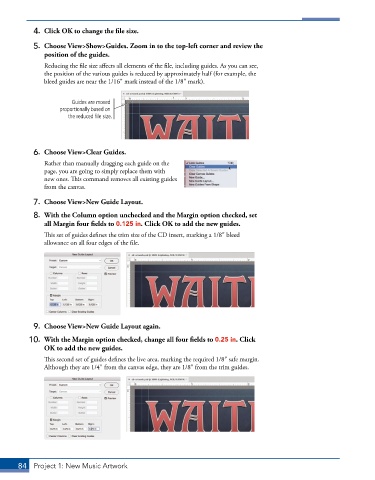
           5.  Choose View>Show>Guides. Zoom in to the top-left corner and review the
              position of the guides.
               Reducing the file size affects all elements of the file, including guides. As you can see,
               the position of the various guides is reduced by approximately half (for example, the
               bleed guides are near the 1/16″ mark instead of the 1/8″ mark).


                       Guides are moved
                   proportionally based on
                      the reduced file size.


           6.  Choose View>Clear Guides.
               Rather than manually dragging each guide on the
               page, you are going to simply replace them with
               new ones. This command removes all existing guides
               from the canvas.

           7.  Choose View>New Guide Layout.
           8.  With the Column option unchecked and the Margin option checked, set
              all Margin four fields to 0.125 in. Click OK to add the new guides.
               This set of guides defines the trim size of the CD insert, marking a 1/8″ bleed
               allowance on all four edges of the file.


           9.  Choose View>New Guide Layout again.

          10.  With the Margin option checked, change all four fields to 0.25 in. Click
               OK to add the new guides.
               This second set of guides defines the live area, marking the required 1/8″ safe margin.
               Although they are 1/4″ from the canvas edge, they are 1/8″ from the trim guides.


       84  Project 1: New Music Artwork

