


Page 77 - Adobe Photoshop 2022
P. 77
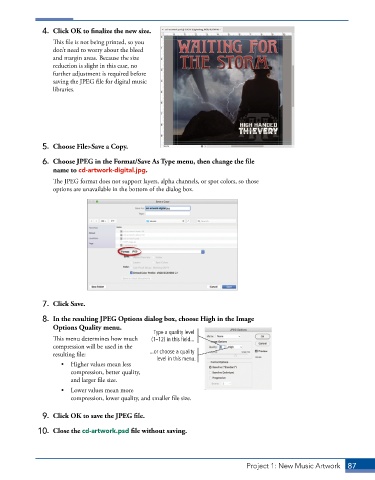
4.  Click OK to finalize the new size.
                 This file is not being printed, so you
                 don’t need to worry about the bleed
                 and margin areas. Because the size
                 reduction is slight in this case, no
                 further adjustment is required before
                 saving the JPEG file for digital music
                 libraries.


              5.  Choose File>Save a Copy.

              6.  Choose JPEG in the Format/Save As Type menu, then change the file
                 name to cd-artwork-digital.jpg.
                 The JPEG format does not support layers, alpha channels, or spot colors, so those
                 options are unavailable in the bottom of the dialog box.


              7.  Click Save.

              8.  In the resulting JPEG Options dialog box, choose High in the Image
                 Options Quality menu.
                                                Type a quality level
                 This menu determines how much   (1–12) in this field...
                 compression will be used in the
                 resulting file:               ...or choose a quality
                                                 level in this menu.
                    •  Higher values mean less
                       compression, better quality,
                       and larger file size.
                    •  Lower values mean more
                       compression, lower quality, and smaller file size.

              9.  Click OK to save the JPEG file.

             10.  Close the cd-artwork.psd file without saving.


                                                                            Project 1: New Music Artwork   87

