


Page 76 - Adobe Photoshop 2022
P. 76
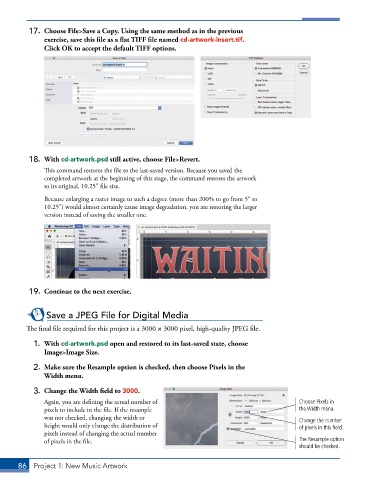
17.  Choose File>Save a Copy. Using the same method as in the previous
              exercise, save this file as a flat TIFF file named cd-artwork-insert.tif.
              Click OK to accept the default TIFF options.


          18.  With cd-artwork.psd still active, choose File>Revert.
               This command restores the file to the last-saved version. Because you saved the
               completed artwork at the beginning of this stage, the command restores the artwork
               to its original, 10.25″ file size.
               Because enlarging a raster image to such a degree (more than 200% to go from 5″ to
               10.25″) would almost certainly cause image degradation, you are restoring the larger
               version instead of saving the smaller one.


          19.  Continue to the next exercise.


               Save a JPEG File for Digital Media

         The final file required for this project is a 3000 × 3000 pixel, high-quality JPEG file.

           1.  With cd-artwork.psd open and restored to its last-saved state, choose
              Image>Image Size.

           2.  Make sure the Resample option is checked, then choose Pixels in the
              Width menu.

           3.  Change the Width field to 3000.
               Again, you are defining the actual number of                                 Choose Pixels in
               pixels to include in the file. If the resample                               the Width menu.
               was not checked, changing the width or                                       Change the number
               height would only change the distribution of                                 of pixels in this field.
               pixels instead of changing the actual number
               of pixels in the file.                                                       The Resample option
                                                                                            should be checked.


       86  Project 1: New Music Artwork

