


Page 70 - Adobe Photoshop 2022
P. 70
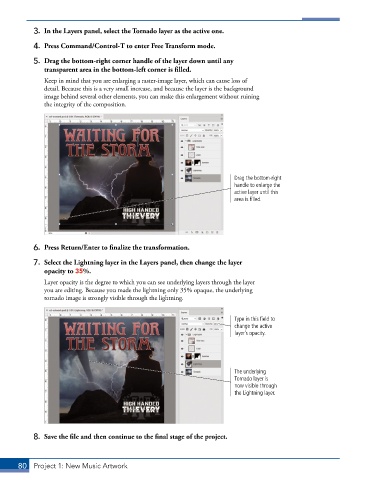
3.  In the Layers panel, select the Tornado layer as the active one.

           4.  Press Command/Control-T to enter Free Transform mode.

           5.  Drag the bottom-right corner handle of the layer down until any
              transparent area in the bottom-left corner is filled.

               Keep in mind that you are enlarging a raster-image layer, which can cause loss of
               detail. Because this is a very small increase, and because the layer is the background
               image behind several other elements, you can make this enlargement without ruining
               the integrity of the composition.


                                                                         Drag the bottom-right
                                                                         handle to enlarge the
                                                                         active layer until this
                                                                         area is filled.


           6.  Press Return/Enter to finalize the transformation.

           7.  Select the Lightning layer in the Layers panel, then change the layer
              opacity to 35%.
               Layer opacity is the degree to which you can see underlying layers through the layer
               you are editing. Because you made the lightning only 35% opaque, the underlying
               tornado image is strongly visible through the lightning.


                                                                         Type in this field to
                                                                         change the active
                                                                         layer’s opacity.


                                                                         The underlying
                                                                         Tornado layer is
                                                                         now visible through
                                                                         the Lightning layer.


           8.  Save the file and then continue to the final stage of the project.


       80  Project 1: New Music Artwork

