


Page 72 - Adobe Photoshop 2022
P. 72
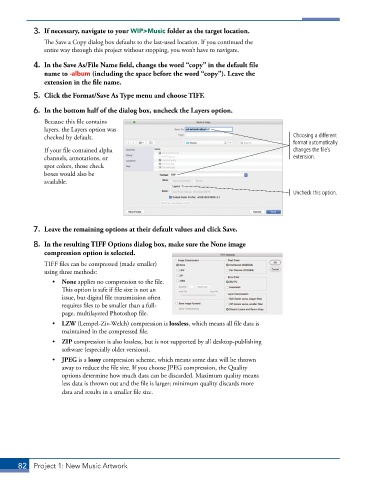
3.  If necessary, navigate to your WIP>Music folder as the target location.
               The Save a Copy dialog box defaults to the last-used location. If you continued the
               entire way through this project without stopping, you won’t have to navigate.

           4.  In the Save As/File Name field, change the word “copy” in the default file
              name to -album (including the space before the word “copy”). Leave the
              extension in the file name.
           5.  Click the Format/Save As Type menu and choose TIFF.

           6.  In the bottom half of the dialog box, uncheck the Layers option.
               Because this file contains
               layers, the Layers option was
               checked by default.                                                         Choosing a different
                                                                                           format automatically
               If your file contained alpha                                                changes the file’s
               channels, annotations, or                                                   extension.
               spot colors, those check
               boxes would also be
               available.
                                                                                           Uncheck this option.


           7.  Leave the remaining options at their default values and click Save.

           8.  In the resulting TIFF Options dialog box, make sure the None image
              compression option is selected.

               TIFF files can be compressed (made smaller)
               using three methods:
                 •  None applies no compression to the file.
                    This option is safe if file size is not an
                    issue, but digital file transmission often
                    requires files to be smaller than a full-
                    page, multilayered Photoshop file.
                 •  LZW (Lempel-Ziv-Welch) compression is lossless, which means all file data is
                    maintained in the compressed file.
                 •  ZIP compression is also lossless, but is not supported by all desktop-publishing
                    software (especially older versions).
                 •  JPEG is a lossy compression scheme, which means some data will be thrown
                    away to reduce the file size. If you choose JPEG compression, the Quality
                    options determine how much data can be discarded. Maximum quality means
                    less data is thrown out and the file is larger; minimum quality discards more
                    data and results in a smaller file size.


       82  Project 1: New Music Artwork

