


Page 66 - Adobe Photoshop 2022
P. 66
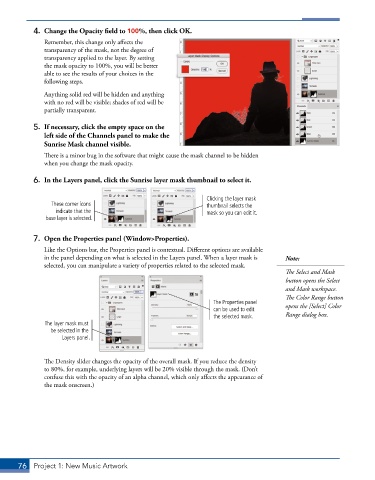
4.  Change the Opacity field to 100%, then click OK.
               Remember, this change only affects the
               transparency of the mask, not the degree of
               transparency applied to the layer. By setting
               the mask opacity to 100%, you will be better
               able to see the results of your choices in the
               following steps.
               Anything solid red will be hidden and anything
               with no red will be visible; shades of red will be
               partially transparent.

           5.  If necessary, click the empty space on the
              left side of the Channels panel to make the
              Sunrise Mask channel visible.
               There is a minor bug in the software that might cause the mask channel to be hidden
               when you change the mask opacity.


           6.  In the Layers panel, click the Sunrise layer mask thumbnail to select it.

                                                                Clicking the layer mask
                 These corner icons                             thumbnail selects the
                  indicate that the                             mask so you can edit it.
               base layer is selected.


           7.  Open the Properties panel (Window>Properties).
               Like the Options bar, the Properties panel is contextual. Different options are available
               in the panel depending on what is selected in the Layers panel. When a layer mask is   Note:
               selected, you can manipulate a variety of properties related to the selected mask.
                                                                                        The Select and Mask
                                                                                        button opens the Select
                                                                                        and Mask workspace.
                                                                                        The Color Range button
                                                                  The Properties panel   opens the [Select] Color
                                                                  can be used to edit
                                                                  the selected mask.    Range dialog box.
               The layer mask must
                 be selected in the
                    Layers panel.


               The Density slider changes the opacity of the overall mask. If you reduce the density
               to 80%, for example, underlying layers will be 20% visible through the mask. (Don’t
               confuse this with the opacity of an alpha channel, which only affects the appearance of
               the mask onscreen.)


       76  Project 1: New Music Artwork

