


Page 62 - Adobe Photoshop CC 2020
P. 62
Edit Layer Mask Properties
         The most important thing to understand in this series of exercises is that layer masks
         are nondestructive. You can change the mask to change the visible area of the layer,
         temporarily hide the mask to show the entire layer, or even delete the mask entirely if
         you decide you don’t want or need it. You can also edit a number of mask properties
         to further refine the mask and its effect on the masked layer contents.

           1.  With cd-artwork.psd open, open the Channels panel (Window>Channels).
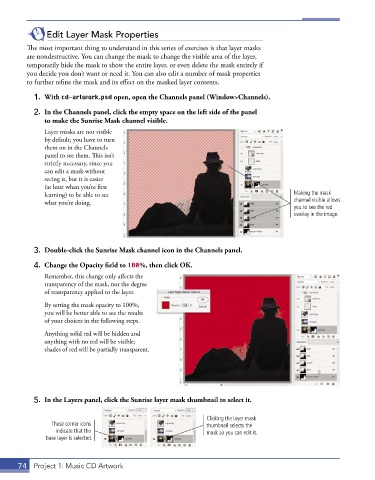
           2.  In the Channels panel, click the empty space on the left side of the panel
               to make the Sunrise Mask channel visible.
               Layer masks are not visible
               by default; you have to turn
               them on in the Channels
               panel to see them. This isn’t
               strictly necessary, since you
               can edit a mask without
               seeing it, but it is easier
               (at least when you’re first
               learning) to be able to see                                                 Making the mask
               what you’re doing.                                                          channel visible allows
                                                                                           you to see the red
                                                                                           overlay in the image.


           3.  Double-click the Sunrise Mask channel icon in the Channels panel.

           4.  Change the Opacity field to 100%, then click OK.
               Remember, this change only affects the
               transparency of the mask, not the degree
               of transparency applied to the layer.
               By setting the mask opacity to 100%,
               you will be better able to see the results
               of your choices in the following steps.

               Anything solid red will be hidden and
               anything with no red will be visible;
               shades of red will be partially transparent.


           5.  In the Layers panel, click the Sunrise layer mask thumbnail to select it.


                                                                Clicking the layer mask
                 These corner icons                             thumbnail selects the
                  indicate that the                             mask so you can edit it.
               base layer is selected.


       74  Project 1: Music CD Artwork

