


Page 59 - Adobe Photoshop CC 2020
P. 59
14.  Experiment with the adjustments until you’re satisfied with the selection edge.
                 We increased the Smooth value to 10 to reduce jagged effects at the selection edge.

             15.  Expand the Output Settings in the Properties panel and
                 choose the Layer Mask option in the Output To menu.
                 This menu can be used to create a new layer or file (with or              Note:
                 without a mask) from the selection. You want to mask the                  Decontaminate
                 existing layer, so you are using the Layer Mask option.
                                                                                           Colors can be checked
             16.  Click OK to accept your refined selection.                               to remove a certain
                                                                                           percentage of color from
                 When you pasted the feathered selection from the original Lightning.jpg file, you   the edge of a selection.
                 pasted only the pixels inside the selection area; unselected pixels from the original
                 image are not a part of the composite file.
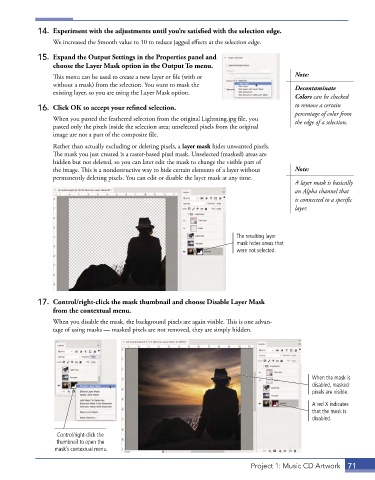
                 Rather than actually excluding or deleting pixels, a layer mask hides unwanted pixels.
                 The mask you just created is a raster-based pixel mask. Unselected (masked) areas are
                 hidden but not deleted, so you can later edit the mask to change the visible part of
                 the image. This is a nondestructive way to hide certain elements of a layer without   Note:
                 permanently deleting pixels. You can edit or disable the layer mask at any time.
                                                                                           A layer mask is basically
                                                                                           an Alpha channel that
                                                                                           is connected to a specific
                                                                                           layer.


                                                                         The resulting layer
                                                                         mask hides areas that
                                                                         were not selected.


             17.  Control/right-click the mask thumbnail and choose Disable Layer Mask
                 from the contextual menu.
                 When you disable the mask, the background pixels are again visible. This is one advan-
                 tage of using masks — masked pixels are not removed, they are simply hidden.


                                                                                                When the mask is
                                                                                                disabled, masked
                                                                                                pixels are visible.
                                                                                                A red X indicates
                                                                                                that the mask is
                                                                                                disabled.

                  Control/right-click the
                  thumbnail to open the
                  mask’s contextual menu.

                                                                              Project 1: Music CD Artwork  71

