


Page 58 - Adobe Photoshop CC 2020
P. 58
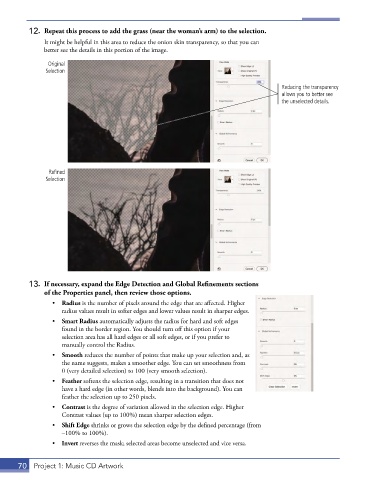
12.  Repeat this process to add the grass (near the woman’s arm) to the selection.
               It might be helpful in this area to reduce the onion skin transparency, so that you can
               better see the details in this portion of the image.

                Original
               Selection

                                                                                       Reducing the transparency
                                                                                       allows you to better see
                                                                                       the unselected details.


                Refined
               Selection


          13.  If necessary, expand the Edge Detection and Global Refinements sections
              of the Properties panel, then review those options.
                 •  Radius is the number of pixels around the edge that are affected. Higher
                    radius values result in softer edges and lower values result in sharper edges.
                 •  Smart Radius automatically adjusts the radius for hard and soft edges
                    found in the border region. You should turn off this option if your
                    selection area has all hard edges or all soft edges, or if you prefer to
                    manually control the Radius.
                 •  Smooth reduces the number of points that make up your selection and, as
                    the name suggests, makes a smoother edge. You can set smoothness from
                    0 (very detailed selection) to 100 (very smooth selection).
                 •  Feather softens the selection edge, resulting in a transition that does not
                    have a hard edge (in other words, blends into the background). You can
                    feather the selection up to 250 pixels.
                 •  Contrast is the degree of variation allowed in the selection edge. Higher
                    Contrast values (up to 100%) mean sharper selection edges.
                 •  Shift Edge shrinks or grows the selection edge by the defined percentage (from
                    –100% to 100%).
                 •  Invert reverses the mask; selected areas become unselected and vice versa.


       70  Project 1: Music CD Artwork

