


Page 66 - Adobe Photoshop CC 2020
P. 66
Filtering Photoshop Layers

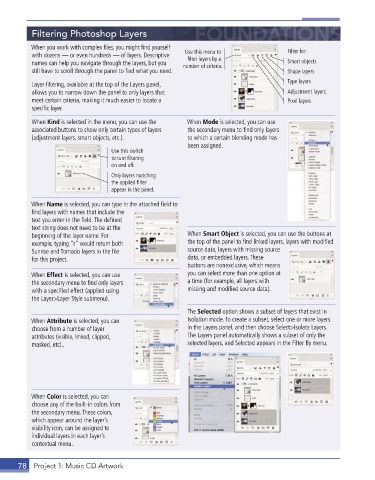
           When you work with complex files, you might find yourself
           with dozens — or even hundreds — of layers . Descriptive   Use this menu to   Filter for:
                                                          filter layers by a
           names can help you navigate through the layers, but you   number of criteria.  Smart objects
           still have to scroll through the panel to find what you need .                Shape layers
           Layer filtering, available at the top of the Layers panel,                    Type layers
           allows you to narrow down the panel to only layers that                       Adjustment layers
           meet certain criteria, making it much easier to locate a                      Pixel layers
           specific layer .
           When Kind is selected in the menu, you can use the   When Mode is selected, you can use
           associated buttons to show only certain types of layers   the secondary menu to find only layers
           (adjustment layers, smart objects, etc .) .    to which a certain blending mode has
                                                          been assigned .
                                   Use this switch
                                   to turn filtering
                                   on and off.
                                   Only layers matching
                                   the applied filter
                                   appear in the panel.

           When Name is selected, you can type in the attached field to
           find layers with names that include the
           text you enter in the field . The defined
           text string does not need to be at the
           beginning of the layer name . For              When Smart Object is selected, you can use the buttons at
           example, typing “r” would return both          the top of the panel to find linked layers, layers with modified
           Sunrise and Tornado layers in the file         source data, layers with missing source
           for this project .                             data, or embedded layers . These
                                                          buttons are nonexclusive, which means
           When Effect is selected, you can use           you can select more than one option at
           the secondary menu to find only layers         a time (for example, all layers with
           with a specified effect (applied using         missing and modified source data) .
           the Layer>Layer Style submenu) .

                                                          The Selected option shows a subset of layers that exist in
           When Attribute is selected, you can            Isolation mode . To create a subset, select one or more layers
           choose from a number of layer                  in the Layers panel, and then choose Select>Isolate Layers .
           attributes (visible, linked, clipped,          The Layers panel automatically shows a subset of only the
           masked, etc) . .                               selected layers, and Selected appears in the Filter By menu .


           When Color is selected, you can
           choose any of the built-in colors from
           the secondary menu . These colors,
           which appear around the layer’s
           visibility icon, can be assigned to
           individual layers in each layer’s
           contextual menu .


       78  Project 1: Music CD Artwork

