


Page 24 - Adobe Photoshop CC 2020
P. 24
5.  Zoom out until you can see the entire canvas in the document window.     Note:

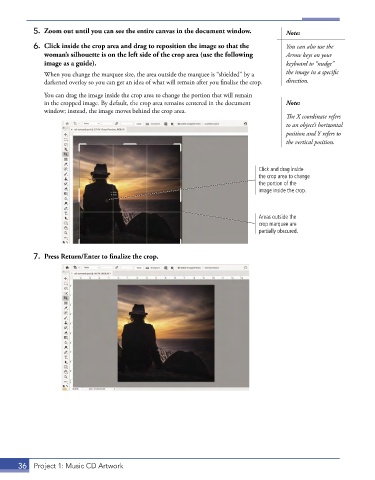
           6.  Click inside the crop area and drag to reposition the image so that the   You can also use the
              woman’s silhouette is on the left side of the crop area (use the following   Arrow keys on your
              image as a guide).                                                        keyboard to “nudge”
               When you change the marquee size, the area outside the marquee is “shielded” by a   the image in a specific
               darkened overlay so you can get an idea of what will remain after you finalize the crop.   direction.
               You can drag the image inside the crop area to change the portion that will remain
               in the cropped image. By default, the crop area remains centered in the document   Note:
               window; instead, the image moves behind the crop area.
                                                                                        The X coordinate refers
                                                                                        to an object’s horizontal
                                                                                        position and Y refers to
                                                                                        the vertical position.


                                                                                Click and drag inside
                                                                                the crop area to change
                                                                                the portion of the
                                                                                image inside the crop.


                                                                                Areas outside the
                                                                                crop marquee are
                                                                                partially obscured.


           7.  Press Return/Enter to finalize the crop.


       36  Project 1: Music CD Artwork

