


Page 28 - Adobe Photoshop CC 2020
P. 28
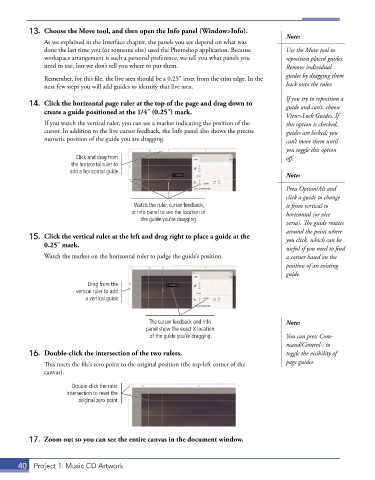
13.  Choose the Move tool, and then open the Info panel (Window>Info).
                                                                                        Note:
               As we explained in the Interface chapter, the panels you see depend on what was
               done the last time you (or someone else) used the Photoshop application. Because   Use the Move tool to
               workspace arrangement is such a personal preference, we tell you what panels you   reposition placed guides.
               need to use, but we don’t tell you where to put them.                    Remove individual
                                                                                        guides by dragging them
               Remember, for this file, the live area should be a 0.25″ inset from the trim edge. In the
               next few steps you will add guides to identify that live area.           back onto the ruler.
                                                                                        If you try to reposition a
          14.  Click the horizontal page ruler at the top of the page and drag down to   guide and can’t, choose
              create a guide positioned at the 1/4″ (0.25″) mark.
                                                                                        View>Lock Guides. If
               If you watch the vertical ruler, you can see a marker indicating the position of the   this option is checked,
               cursor. In addition to the live cursor feedback, the Info panel also shows the precise   guides are locked; you
               numeric position of the guide you are dragging.                          can’t move them until
                                                                                        you toggle this option
                        Click and drag from                                             off.
                       the horizontal ruler to
                      add a horizontal guide.
                                                                                        Note:
                                                                                        Press Option/Alt and
                                                                                        click a guide to change
                                          Watch the ruler, cursor feedback,             it from vertical to
                                         or Info panel to see the location of           horizontal (or vice
                                            the guide you’re dragging.
                                                                                        versa). The guide rotates
                                                                                        around the point where
          15.  Click the vertical ruler at the left and drag right to place a guide at the   you click, which can be
              0.25″ mark.                                                               useful if you need to find
               Watch the marker on the horizontal ruler to judge the guide’s position.  a corner based on the
                                                                                        position of an existing
                                                                                        guide.

                            Drag from the
                        vertical ruler to add
                           a vertical guide.


                                               The cursor feedback and Info             Note:
                                              panel show the exact X location
                                               of the guide you’re dragging.            You can press Com-
                                                                                        mand/Control-; to
          16.  Double-click the intersection of the two rulers.                         toggle the visibility of

               This resets the file’s zero point to the original position (the top-left corner of the   page guides.
               canvas).

                       Double-click the ruler
                     intersection to reset the
                         original zero point.


          17.  Zoom out so you can see the entire canvas in the document window.


       40  Project 1: Music CD Artwork

