


Page 27 - Adobe Photoshop CC 2020
P. 27
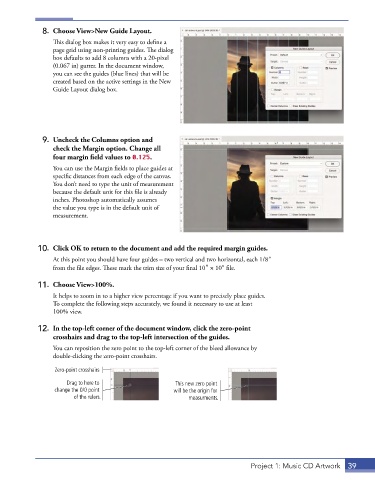
8.  Choose View>New Guide Layout.
                 This dialog box makes it very easy to define a
                 page grid using non-printing guides. The dialog
                 box defaults to add 8 columns with a 20-pixel
                 (0.067 in) gutter. In the document window,
                 you can see the guides (blue lines) that will be
                 created based on the active settings in the New
                 Guide Layout dialog box.


              9.  Uncheck the Columns option and
                 check the Margin option. Change all
                 four margin field values to 0.125.
                 You can use the Margin fields to place guides at
                 specific distances from each edge of the canvas.
                 You don’t need to type the unit of measurement
                 because the default unit for this file is already
                 inches. Photoshop automatically assumes
                 the value you type is in the default unit of
                 measurement.


             10.  Click OK to return to the document and add the required margin guides.

                 At this point you should have four guides – two vertical and two horizontal, each 1/8″
                 from the file edges. These mark the trim size of your final 10″ × 10″ file.

             11.  Choose View>100%.

                 It helps to zoom in to a higher view percentage if you want to precisely place guides.
                 To complete the following steps accurately, we found it necessary to use at least
                 100% view.


             12.  In the top-left corner of the document window, click the zero-point
                 crosshairs and drag to the top-left intersection of the guides.

                 You can reposition the zero point to the top-left corner of the bleed allowance by
                 double-clicking the zero-point crosshairs.

                  Zero-point crosshairs
                     Drag to here to                   This new zero point
                  change the 0/0 point                will be the origin for
                        of the rulers.                     measurments.


                                                                              Project 1: Music CD Artwork  39

