


Page 29 - Adobe Photoshop CC 2020
P. 29
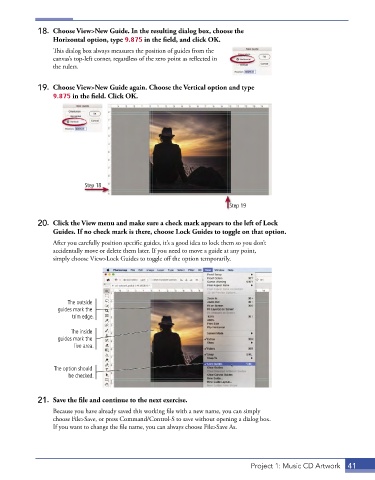
18.  Choose View>New Guide. In the resulting dialog box, choose the
                 Horizontal option, type 9.875 in the field, and click OK.
                 This dialog box always measures the position of guides from the
                 canvas’s top-left corner, regardless of the zero point as reflected in
                 the rulers.


             19.  Choose View>New Guide again. Choose the Vertical option and type
                 9.875 in the field. Click OK.


                           Step 18

                                                                       Step 19


             20.  Click the View menu and make sure a check mark appears to the left of Lock
                 Guides. If no check mark is there, choose Lock Guides to toggle on that option.

                 After you carefully position specific guides, it’s a good idea to lock them so you don’t
                 accidentally move or delete them later. If you need to move a guide at any point,
                 simply choose View>Lock Guides to toggle off the option temporarily.


                      The outside
                   guides mark the
                       trim edge.
                       The inside
                   guides mark the
                        live area.


                 The option should
                      be checked.


             21.  Save the file and continue to the next exercise.

                 Because you have already saved this working file with a new name, you can simply
                 choose File>Save, or press Command/Control-S to save without opening a dialog box.
                 If you want to change the file name, you can always choose File>Save As.


                                                                              Project 1: Music CD Artwork  41

