


Page 60 - CS6_ID_Look_Inside
P. 60
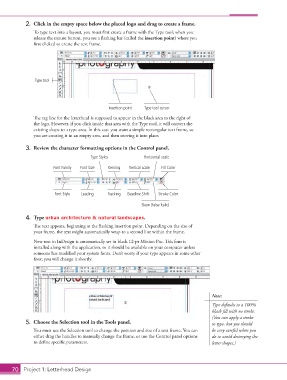
2.  Click in the empty space below the placed logo and drag to create a frame.
                    To type text into a layout, you must first create a frame with the Type tool; when you
                    release the mouse button, you see a flashing bar (called the insertion point) where you
                    first clicked to create the text frame.


                     Type tool


                                                   Insertion point  Type tool cursor

                    The tag line for the letterhead is supposed to appear in the black area to the right of
                    the logo. However, if you click inside that area with the Type tool, it will convert the
                    existing shape to a type area. In this case you want a simple rectangular text frame, so
                    you are creating it in an empty area, and then moving it into place.

                 3.  Review the character formatting options in the Control panel.

                                            Type Styles          Horizontal scale

                            Font Family  Font Size  Kerning  Vertical scale  Fill Color


                             Font Style  Leading   Tracking  Baseline Shift  Stroke Color

                                                                Skew (false italic)

                 4.  Type urban architecture & natural landscapes.
                    The text appears, beginning at the flashing insertion point. Depending on the size of
                    your frame, the text might automatically wrap to a second line within the frame.
                    New text in InDesign is automatically set in black 12-pt Minion Pro. This font is
                    installed along with the application, so it should be available on your computer unless
                    someone has modified your system fonts. Don’t worry if your type appears in some other
                    font; you will change it shortly.


                                                                                             Note:
                                                                                             Type defaults to a 100%
                                                                                             black fill with no stroke.
                                                                                             (You can apply a stroke
                 5.  Choose the Selection tool in the Tools panel.                           to type, but you should
                    You must use the Selection tool to change the position and size of a text frame. You can   be very careful when you
                    either drag the handles to manually change the frame, or use the Control panel options   do to avoid destroying the
                    to define specific parameters.                                           letter shapes.)


           70 Project 1: Letterhead Design

