


Page 65 - CS6_ID_Look_Inside
P. 65
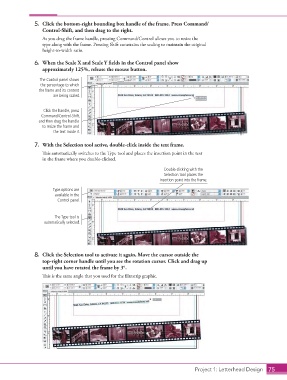
5.  Click the bottom-right bounding box handle of the frame. Press Command/
                        Control-Shift, and then drag to the right.
                        As you drag the frame handle, pressing Command/Control allows you to resize the
                        type along with the frame. Pressing Shift constrains the scaling to maintain the original
                        height-to-width ratio.

                    6.  When the Scale X and Scale Y fields in the Control panel show
                        approximately 125%, release the mouse button.

                       The Control panel shows
                       the percentage to which
                      the frame and its content
                            are being scaled.


                        Click the handle, press
                       Command/Control-Shift,
                      and then drag the handle
                        to resize the frame and
                            the text inside it.


                    7.  With the Selection tool active, double-click inside the text frame.
                        This automatically switches to the Type tool and places the insertion point in the text
                        in the frame where you double-clicked.

                                                                          Double-clicking with the
                                                                          Selection tool places the
                                                                        insertion point into the frame.
                            Type options are
                             available in the
                              Control panel.


                             The Type tool is
                        automatically selected.


                    8.  Click the Selection tool to activate it again. Move the cursor outside the
                        top-right corner handle until you see the rotation cursor. Click and drag up
                        until you have rotated the frame by 3°.
                        This is the same angle that you used for the filmstrip graphic.


                                                                                      Project 1: Letterhead Design  75

