


Page 59 - CS6_ID_Look_Inside
P. 59
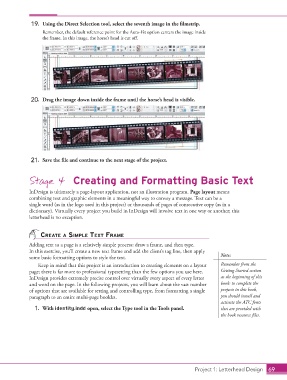
19.  Using the Direct Selection tool, select the seventh image in the filmstrip.
                        Remember, the default reference point for the Auto-Fit option centers the image inside
                        the frame. In this image, the horse’s head is cut off.


                   20.  Drag the image down inside the frame until the horse’s head is visible.


                   21.  Save the file and continue to the next stage of the project.


                  Stage 4  Creating and Formatting Basic Text


                  InDesign is ultimately a page-layout application, not an illustration program. Page layout means
                  combining text and graphic elements in a meaningful way to convey a message. Text can be a
                  single word (as in the logo used in this project) or thousands of pages of consecutive copy (as in a
                  dictionary). Virtually every project you build in InDesign will involve text in one way or another; this
                  letterhead is no exception.


                       create a simPle text Frame
                  Adding text to a page is a relatively simple process: draw a frame, and then type.
                  In this exercise, you’ll create a new text frame and add the client’s tag line, then apply
                  some basic formatting options to style the text.                               Note:
                      Keep in mind that this project is an introduction to creating elements on a layout   Remember from the
                  page; there is far more to professional typesetting than the few options you use here.   Getting Started section
                  InDesign provides extremely precise control over virtually every aspect of every letter   at the beginning of this
                  and word on the page. In the following projects, you will learn about the vast number   book: to complete the
                  of options that are available for setting and controlling type, from formatting a single   projects in this book,
                  paragraph to an entire multi-page booklet.                                     you should install and
                                                                                                 activate the ATC fonts
                    1.  With identity.indd open, select the Type tool in the Tools panel.        that are provided with
                                                                                                 the book resource files.


                                                                                      Project 1: Letterhead Design  69

