


Page 56 - CS6_ID_Look_Inside
P. 56
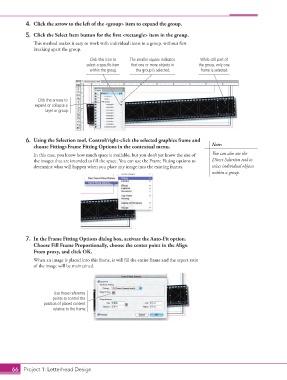
4.  Click the arrow to the left of the <group> item to expand the group.

                 5.  Click the Select Item button for the first <rectangle> item in the group.
                    This method makes it easy to work with individual items in a group, without first
                    breaking apart the group.

                                           Click this icon to   The smaller square indicates   While still part of
                                          select a specific item   that one or more objects in   the group, only one
                                           within the group.  the group is selected.     frame is selected.


                      Click the arrows to
                     expand or collapse a
                         layer or group.


                  6.  Using the Selection tool, Control/right-click the selected graphics frame and
                    choose Fitting>Frame Fitting Options in the contextual menu.             Note:
                    In this case, you know how much space is available, but you don’t yet know the size of   You can also use the
                    the images that are intended to fill the space. You can use the Frame Fitting options to   Direct Selection tool to
                    determine what will happen when you place any image into the existing frames.  select individual objects
                                                                                             within a group.


                 7.  In the Frame Fitting Options dialog box, activate the Auto-Fit option.
                    Choose Fill Frame Proportionally, choose the center point in the Align
                    From proxy, and click OK.
                    When an image is placed into this frame, it will fill the entire frame and the aspect ratio
                    of the image will be maintained.


                             Use these reference
                            points to control the
                        position of placed content
                            relative to the frame.


           66 Project 1: Letterhead Design

