


Page 54 - CS6_ID_Look_Inside
P. 54
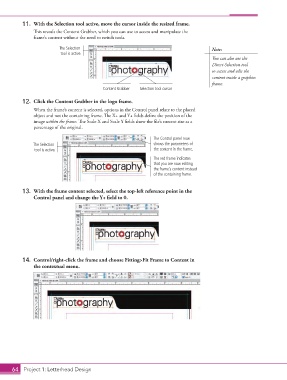
11.  With the Selection tool active, move the cursor inside the resized frame.
                    This reveals the Content Grabber, which you can use to access and manipulate the
                    frame’s content without the need to switch tools.

                               The Selection                                                 Note:
                               tool is active.
                                                                                             You can also use the
                                                                                             Direct Selection tool
                                                                                             to access and edit the
                                                                                             content inside a graphics
                                                                                             frame.
                                                 Content Grabber  Selection tool cursor

                12.  Click the Content Grabber in the logo frame.

                    When the frame’s content is selected, options in the Control panel relate to the placed
                    object and not the containing frame. The X+ and Y+ fields define the position of the
                    image within the frame. The Scale X and Scale Y fields show the file’s current size as a
                    percentage of the original.

                                                                     The Control panel now
                    The Selection                                    shows the parameters of
                     tool is active.                                 the content in the frame.
                                                                     The red frame indicates
                                                                     that you are now editing
                                                                     the frame’s content instead
                                                                     of the containing frame.


                13.  With the frame content selected, select the top-left reference point in the
                    Control panel and change the Y+ field to 0.


                14.  Control/right-click the frame and choose Fitting>Fit Frame to Content in
                    the contextual menu.


           64 Project 1: Letterhead Design

