


Page 53 - CS6_ID_Look_Inside
P. 53
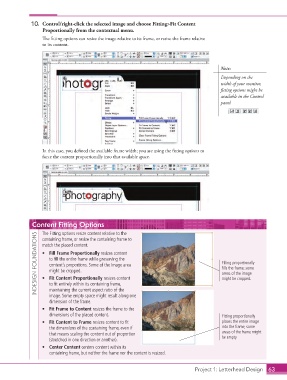
10.  Control/right-click the selected image and choose Fitting>Fit Content
                        Proportionally from the contextual menu.
                        The fitting options can resize the image relative to its frame, or resize the frame relative
                        to its content.


                                                                                                 Note:
                                                                                                 Depending on the
                                                                                                 width of your monitor,
                                                                                                 fitting options might be
                                                                                                 available in the Control
                                                                                                 panel.


                        In this case, you defined the available frame width; you are using the fitting options to
                        force the content proportionally into that available space.


                    Content Fitting Options
                        The Fitting options resize content relative to the
                     INDESIGN FOUNDATIONS  match the placed content.                             Filling proportionally
                        containing frame, or resize the containing frame to

                        •  Fill Frame Proportionally resizes content
                           to fill the entire frame while preserving the
                           content’s proportions. Some of the image area
                                                                                                 fills the frame; some
                           might be cropped.
                                                                                                 areas of the image
                        •  Fit Content Proportionally resizes content
                                                                                                 might be cropped.
                           to fit entirely within its containing frame,
                           maintaining the current aspect ratio of the
                           image. Some empty space might result along one
                           dimension of the frame.
                        •  Fit Frame to Content resizes the frame to the
                           dimensions of the placed content.                                     Fitting proportionally
                        •  Fit Content to Frame resizes content to fit                           places the entire image
                           the dimensions of the containing frame, even if                       into the frame; some
                           that means scaling the content out of proportion                      areas of the frame might
                           (stretched in one direction or another).                              be empty.
                        •  Center Content centers content within its
                           containing frame, but neither the frame nor the content is resized.


                                                                                      Project 1: Letterhead Design  63

