


Page 68 - CC 2019 ID Look Inside
P. 68
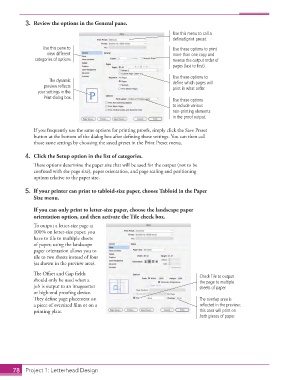
3.  Review the options in the General pane.

                                                                         Use this menu to call a
                                                                         defined print preset.
                       Use this pane to                                  Use these options to print
                        view different                                   more than one copy and
                    categories of options.                               reverse the output order of
                                                                         pages (last to first).

                                                                         Use these options to
                         The dynamic                                     define which pages will
                       preview reflects                                  print in what order.
                     your settings in the
                       Print dialog box.                                 Use these options
                                                                         to include various
                                                                         non-printing elements
                                                                         in the proof output.

                   If you frequently use the same options for printing proofs, simply click the Save Preset
                   button at the bottom of the dialog box after defi ning those settings. You can then call
                   those same settings by choosing the saved preset in the Print Preset menu.

               4.  Click the Setup option in the list of categories.
                   Th  ese options determine the paper size that will be used for the output (not to be
                   confused with the page size), paper orientation, and page scaling and positioning
                   options relative to the paper size.

               5.  If your printer can print to tabloid-size paper, choose Tabloid in the  Paper
                   Size menu.
                     If you can only print to letter-size paper, choose the landscape paper
                   orientation option, and then activate the Tile check box.
                   To output a letter-size page at
                   100% on letter-size paper, you
                   have to tile to multiple sheets
                   of paper; using the landscape
                   paper orientation allows you to
                   tile to two sheets instead of four
                   (as shown in the preview area).

                   Th  e Off set and Gap fi elds                                   Check Tile to output
                   should only be used when a                                      the page to multiple
                   job is output to an imagesetter                                 sheets of paper.
                   or high-end proofi ng device.
                   Th  ey defi ne page placement on                                The overlap area is
                   a piece of oversized fi lm or on a                              reflected in the preview;
                   printing plate.                                                 this area will print on
                                                                                   both pieces of paper.


           78     Project 1: Letterhead Design

