


Page 31 - CC 2019 ID Look Inside
P. 31
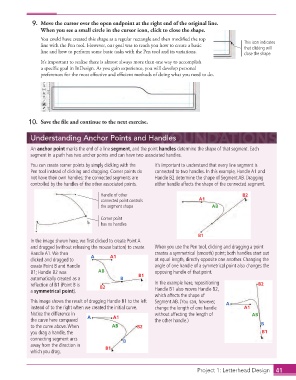
9.  Move the cursor over the open endpoint at the right end of the original line.
                      When you see a small circle in the cursor icon, click to close the shape.
                      You could have created this shape as a regular rectangle and then modifi ed the top
                      line with the Pen tool. However, our goal was to teach you how to create a basic   This icon indicates
                                                                                                    that clicking will
                      line and how to perform some basic tasks with the Pen tool and its variations.  close the shape.
                      It’s important to realize there is almost always more than one way to accomplish
                      a specifi c goal in InDesign. As you gain experience, you will develop personal
                      preferences for the most eff ective and effi  cient methods of doing what you need to do.


                  10.  Save the fi le and continue to the next exercise.

                  Understanding Anchor Points and Handles

                  An  anchor point marks the end of a line  segment, and the point  handles determine the shape of that segment. Each
                  segment in a path has two anchor points and can have two associated handles.
                  You can create  corner points by simply clicking with the   It’s important to understand that every line segment is
                    Pen tool instead of clicking and dragging. Corner points do   connected to two handles. In this example, Handle A1 and
                  not have their own handles; the connected segments are   Handle B2 determine the shape of Segment AB. Dragging
                  controlled by the handles of the other associated points.   either handle affects the shape of the connected segment.

                                             Handle of other                                       B2
                                             connected point controls              A1
                                             the segment shape                          AB

                                             Corner point
                                             has no handles

                                                                                  B1
                  In the image shown here, we fi rst clicked to create Point A
                  and dragged (without releasing the mouse button) to create   When you use the Pen tool, clicking and dragging a point
                  Handle A1. We then     A       A1               creates a symmetrical (smooth) point; both  handles start out
                  clicked and dragged to                          at equal length, directly opposite one another. Changing the
                  create Point B and Handle                       angle of one handle of a symmetrical point also changes the
                  B1; Handle B2 was         AB             B1     opposing handle of that point.
                  automatically created as a        B
                  refl ection of B1 (Point B is   B2               In the example here, repositioning     B2
                  a  symmetrical point).                          Handle B1 also moves Handle B2,
                                                                  which affects the shape of
                  This image shows the result of dragging Handle B1 to the left   Segment AB. (You can, however,   A
                  instead of to the right when we created the initial curve.   change the length of one handle   A1
                  Notice the difference in                        without affecting the length of      AB
                  the curve here compared   A     A1              the other handle.)
                  to the curve above. When       AB        B2                                             B
                  you drag a handle, the                                                                   B1
                  connecting  segment arcs            B
                  away from the direction in   B1
                  which you drag.


                                                                                    Project 1: Letterhead Design  41

