


Page 60 - CC2017_ID_Look_Inside
P. 60
More About Working with Fonts                         Clear the Font   Font menu
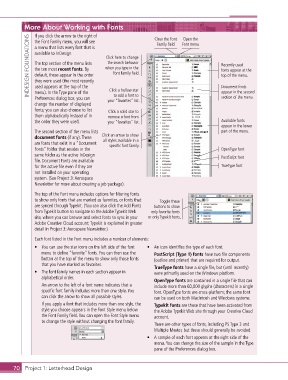
               If you click the arrow to the right of
             INDESIGN FOUNDATIONS  a menu that lists every font that is   when you type in the   Recently used
                                                                             Open the
               the Font Family menu, you will see
                                                                  Family field
               available to InDesign.
                                             Click here to change
                                             the search behavior
               The top section of the menu lists
               the ten most recent fonts. By
                                                                                            fonts appear at the
                                                Font Family field.
               default, these appear in the order
                                                                                            top of the menu.
               they were used (the most recently
               used appears at the top of the
                                              Click a hollow star
                                                                                            appear in the second
               menu). In the Type pane of the
                                                to add a font to
                                                                                            section of the menu.
               Preferences dialog box, you can   your “favorites” list.                     Document fonts
               change the number of displayed
               fonts; you can also choose to list   Click a solid star to
               them alphabetically instead of in   remove a font from
               the order they were used.     your “favorites” list.                         Available fonts
                                                                                            appear in the lower
               The second section of the menu lists                                         part of the menu.
               document fonts (if any). These   Click an arrow to show
               are fonts that exist in a “Document   all styles available in a
                                              specific font family.
               Fonts” folder that resides in the                                            OpenType font
               same folder as the active InDesign                                           PostScript font
               file. Document Fonts are available
               for the active file even if they are                                         TrueType font
               not installed on your operating
               system. (See Project 3: Aerospace
               Newsletter for more about creating a job package).
               The top of the Font menu includes options for filtering fonts
               to show only fonts that are marked as favorites, or fonts that   Toggle these
               are synced through Typekit. (You can also click the Add Fonts   buttons to show
               from Typekit button to navigate to the Adobe Typekit Web   only favorite fonts
               site, where you can browse and select fonts to sync in your   or only Typekit fonts.
               Adobe Creative Cloud account; Typekit is explained in greater
               detail in Project 3: Aerospace Newsletter.)

               Each font listed in the Font menu includes a number of elements:
               •  You can use the star icons on the left side of the font   •  An icon identifies the type of each font.
                  menu to define “favorite” fonts. You can then use the      PostScript (Type 1) fonts have two file components
                  button at the top of the menu to show only those fonts   (outline and printer) that are required for output.
                  that you have marked as favorites.
                                                                 TrueType fonts have a single file, but (until recently)
               •  The font family names in each section appear in   were primarily used on the Windows platform.
                  alphabetical order.
                                                                 OpenType fonts are contained in a single file that can
                  An arrow to the left of a font name indicates that a   include more than 60,000 glyphs (characters) in a single
                  specific font family includes more than one style. You   font. OpenType fonts are cross-platform; the same font
                  can click the arrow to show all possible styles.  can be used on both Macintosh and Windows systems.
                  If you apply a font that includes more than one style, the      Typekit fonts are those that have been activated from
                  style you choose appears in the Font Style menu below   the Adobe Typekit Web site through your Creative Cloud
                  the Font Family field. You can open the Font Style menu   account.
                  to change the style without changing the font family.
                                                                 There are other types of fonts, including PS Type 3 and
                                                                 Multiple Master, but these should generally be avoided.
                                                              •  A sample of each font appears at the right side of the
                                                                 menu. You can change the size of the sample in the Type
                                                                 pane of the Preferences dialog box.


       70 Project 1: Letterhead Design

