


Page 55 - CC2017_ID_Look_Inside
P. 55
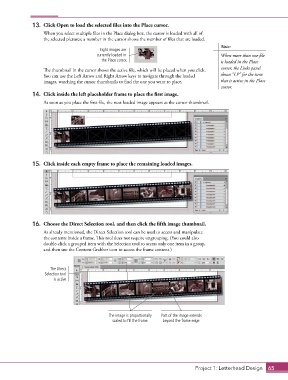
13.  Click Open to load the selected files into the Place cursor.
                   When you select multiple files in the Place dialog box, the cursor is loaded with all of
                   the selected pictures; a number in the cursor shows the number of files that are loaded.
                                                                                            Note:
                                          Eight images are
                                         currently loaded in                                When more than one file
                                           the Place cursor.                                is loaded in the Place
                   The thumbnail in the cursor shows the active file, which will be placed when you click.   cursor, the Links panel
                   You can use the Left Arrow and Right Arrow keys to navigate through the loaded   shows “LP” for the item
                   images, watching the cursor thumbnails to find the one you want to place.  that is active in the Place
                                                                                            cursor.
               14.  Click inside the left placeholder frame to place the first image.

                   As soon as you place the first file, the next loaded image appears as the cursor thumbnail.


               15.  Click inside each empty frame to place the remaining loaded images.


               16.  Choose the Direct Selection tool, and then click the fifth image thumbnail.
                   As already mentioned, the Direct Selection tool can be used to access and manipulate
                   the contents inside a frame. This tool does not require ungrouping. (You could also
                   double-click a grouped item with the Selection tool to access only one item in a group,
                   and then use the Content Grabber icon to access the frame content.)


                      The Direct
                   Selection tool
                       is active.


                                              The image is proportionally   Part of the image extends
                                               scaled to fill the frame.  beyond the frame edge.


                                                                                  Project 1: Letterhead Design  65

