


Page 65 - CC2017_ID_Look_Inside
P. 65
Tips and Tricks for Working with Layout Elements
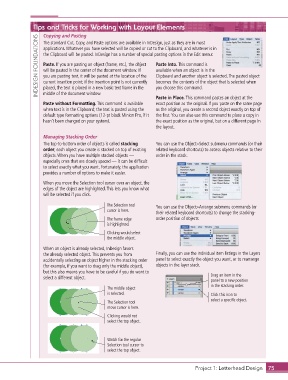
                   Copying and Pasting
                 INDESIGN FOUNDATIONS  applications. Whatever you have selected will be copied or cut to the Clipboard, and whatever is in
                   The standard Cut, Copy, and Paste options are available in InDesign, just as they are in most

                   the Clipboard will be pasted. InDesign has a number of special pasting options in the Edit menu:

                                                                 Paste Into . This command is
                   Paste . If you are pasting an object (frame, etc.), the object
                                                                 available when an object is in the
                   will be pasted in the center of the document window. If
                                                                 Clipboard and another object is selected. The pasted object
                   you are pasting text, it will be pasted at the location of the
                                                                 becomes the contents of the object that is selected when
                   current insertion point; if the insertion point is not currently
                   placed, the text is placed in a new basic text frame in the
                   middle of the document window.
                                                                 Paste in Place . This command pastes an object at the
                   Paste without Formatting . This command is available   you choose this command.
                                                                 exact position as the original. If you paste on the same page
                   when text is in the Clipboard; the text is pasted using the   as the original, you create a second object exactly on top of
                   default type formatting options (12-pt black Minion Pro, if it   the first. You can also use this command to place a copy in
                   hasn’t been changed on your system).          the exact position as the original, but on a different page in
                                                                 the layout.
                   Managing Stacking Order
                   The top-to-bottom order of objects is called stacking   You can use the Object>Select submenu commands (or their
                   order; each object you create is stacked on top of existing   related keyboard shortcuts) to access objects relative to their
                   objects. When you have multiple stacked objects —   order in the stack.
                   especially ones that are closely spaced — it can be difficult
                   to select exactly what you want. Fortunately, the application
                   provides a number of options to make it easier.
                   When you move the Selection tool cursor over an object, the
                   edges of the object are highlighted. This lets you know what
                   will be selected if you click.

                                             The Selection tool   You can use the Object>Arrange submenu commands (or
                                             cursor is here.
                                                                 their related keyboard shortcuts) to change the stacking-
                                             The frame edge      order position of objects.
                                             is highlighted.
                                             Clicking would select
                                             the middle object.
                   When an object is already selected, InDesign favors
                   the already selected object. This prevents you from   Finally, you can use the individual item listings in the Layers
                   accidentally selecting an object higher in the stacking order   panel to select exactly the object you want, or to rearrange
                   (for example, if you want to drag only the middle object),   objects in the layer stack.
                   but this also means you have to be careful if you do want to
                   select a different object.                                           Drag an item in the
                                                                                        panel to a new position
                                                                                        in the stacking order.
                                             The middle object
                                             is selected.                               Click this icon to
                                                                                        select a specific object.
                                             The Selection tool
                                             move cursor is here.

                                             Clicking would not
                                             select the top object.


                                             Watch for the regular
                                             Selection tool cursor to
                                             select the top object.


                                                                                  Project 1: Letterhead Design  75

