


Page 57 - CC2017_ID_Look_Inside
P. 57
Stage 4  Creating and Formatting Basic Text


              InDesign is ultimately a page-layout application, not an illustration program. Page layout means
              combining text and graphic elements in a meaningful way to convey a message. Text can be a
              single word (as in the logo used in this project) or thousands of pages of consecutive copy (as in a
              dictionary). Virtually every project you build in InDesign will involve text in one way or another; this
              letterhead is no exception.


                  CreAte A simPle text FrAme
              Adding text to a page is a relatively simple process: draw a frame, and then type.
              In this exercise, you’ll create a new text frame and add the client’s tag line, then apply
              some basic formatting options to style the text.
                 Keep in mind that this project is an introduction to creating elements on a layout
              page; there is far more to professional typesetting than the few options you use here.
              InDesign provides extremely precise control over virtually every aspect of every letter
              and word on the page. In the following projects, you will learn about the vast number
              of options that are available for setting and controlling type, from formatting a single
              paragraph to an entire multi-page booklet.
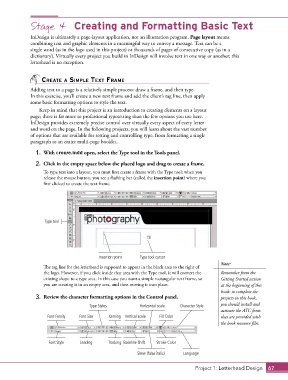
                1.  With crowe.indd open, select the Type tool in the Tools panel.

                2.  Click in the empty space below the placed logo and drag to create a frame.

                   To type text into a layout, you must first create a frame with the Type tool; when you
                   release the mouse button, you see a flashing bar (called the insertion point) where you
                   first clicked to create the text frame.


                   Type tool


                                          Insertion point  Type tool cursor
                                                                                            Note:
                   The tag line for the letterhead is supposed to appear in the black area to the right of
                   the logo. However, if you click inside that area with the Type tool, it will convert the   Remember from the
                   existing shape to a type area. In this case you want a simple rectangular text frame, so   Getting Started section
                   you are creating it in an empty area, and then moving it into place.     at the beginning of this
                                                                                            book: to complete the
                3.  Review the character formatting options in the Control panel.           projects in this book,
                                      Type Styles          Horizontal scale  Character Style  you should install and
                                                                                            activate the ATC fonts
                     Font Family  Font Size   Kerning  Vertical scale  Fill Color           that are provided with
                                                                                            the book resource files.


                     Font Style   Leading     Tracking Baseline Shift  Stroke Color
                                                          Skew (false italic)  Language


                                                                                  Project 1: Letterhead Design  67

