


Page 33 - CC2017_ID_Look_Inside
P. 33
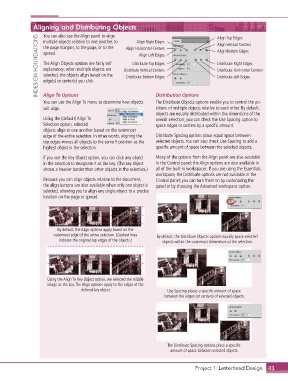
Aligning and Distributing Objects         Align Right Edges                 Align Top Edges
                   You can also use the Align panel to align
                 INDESIGN FOUNDATIONS  the page margins, to the page, or to the   Distribute Vertical Centers  Align Bottom Edges
                   multiple objects relative to one another, to
                                                                                           Align Vertical Centers
                                                     Align Horizontal Centers
                   spread.
                                                          Align Left Edges
                   The Align Objects options are fairly self
                                                        Distribute Top Edges
                                                                                           Distribute Right Edges
                   explanatory; when multiple objects are
                                                                                           Distribute Horizontal Centers
                   selected, the objects align based on the
                                                                                           Distribute Left Edges
                                                     Distribute Bottom Edges
                   edge(s) or center(s) you click.
                   Align To Options
                                                                 The Distribute Objects options enable you to control the po-
                   You can use the Align To menu to determine how objects   Distribution Options
                   will align.                                   sitions of multiple objects relative to each other. By default,
                                                                 objects are equally distributed within the dimensions of the
                   Using the (default) Align To                  overall selection; you can check the Use Spacing option to
                   Selection option, selected                    space edges or centers by a specific amount.
                   objects align to one another based on the outermost
                   edge of the entire selection. In other words, aligning the   Distribute Spacing options place equal space between
                   top edges moves all objects to the same Y position as the   selected objects. You can also check Use Spacing to add a
                   highest object in the selection.              specific amount of space between the selected objects.

                   If you use the Key Object option, you can click any object   Many of the options from the Align panel are also available
                   in the selection to designate it as the key. (The key object   in the Control panel; the Align options are also available in
                   shows a heavier border than other objects in the selection.)  all of the built-in workspaces. If you are using the Essentials
                                                                 workspace, the Distribute options are not available in the
                   Because you can align objects relative to the document,   Control panel; you can turn them on by customizing the
                   the align buttons are also available when only one object is   panel or by choosing the Advanced workspace option.
                   selected, allowing you to align any single object to a precise
                   location on the page or spread.


                         By default, the Align options apply based on the
                       outermost edge of the active selection. (Dashed lines   By default, the Distribute Objects options equally space selected
                         indicate the original top edges of the objects.)  objects within the outermost dimensions of the selection.


                     Using the Align To Key Object option, we selected the middle
                     image as the key. The Align options apply to the edges of the
                                   defined key object.                Use Spacing places a specific amount of space
                                                                     between the edges (or centers) of selected objects.


                                                                      The Distribute Spacing options place a specific
                                                                       amount of space between selected objects.


                                                                                  Project 1: Letterhead Design  43

