


Page 37 - CC2017_ID_Look_Inside
P. 37
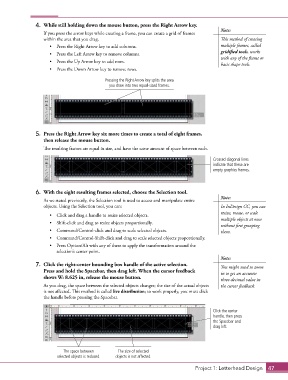
4.  While still holding down the mouse button, press the Right Arrow key.
                                                                                            Note:
                   If you press the arrow keys while creating a frame, you can create a grid of frames
                   within the area that you drag.                                           This method of creating
                      •  Press the Right Arrow key to add columns.                          multiple frames, called
                                                                                            gridified tools, works
                      •  Press the Left Arrow key to remove columns.
                                                                                            with any of the frame or
                      •  Press the Up Arrow key to add rows.
                                                                                            basic shape tools.
                      •  Press the Down Arrow key to remove rows.

                                            Pressing the Right Arrow key splits the area
                                              you draw into two equal-sized frames.


                5.  Press the Right Arrow key six more times to create a total of eight frames,
                   then release the mouse button.

                   The resulting frames are equal in size, and have the same amount of space between each.
                                                                                         Crossed diagonal lines
                                                                                         indicate that these are
                                                                                         empty graphics frames.


                6.  With the eight resulting frames selected, choose the Selection tool.
                                                                                            Note:
                   As we stated previously, the Selection tool is used to access and manipulate entire
                   objects. Using the Selection tool, you can:                              In InDesign CC, you can
                                                                                            resize, rotate, or scale
                      •  Click and drag a handle to resize selected objects.
                                                                                            multiple objects at once
                      •  Shift-click and drag to resize objects proportionally.
                                                                                            without first grouping
                      •  Command/Control-click and drag to scale selected objects.          them.
                      •  Command/Control-Shift-click and drag to scale selected objects proportionally.
                      •  Press Option/Alt with any of these to apply the transformation around the
                        selection’s center point.
                                                                                            Note:
                7.  Click the right-center bounding box handle of the active selection.     You might need to zoom
                   Press and hold the Spacebar, then drag left. When the cursor feedback    in to get an accurate
                   shows W: 8.625 in, release the mouse button.                             three-decimal value in
                   As you drag, the space between the selected objects changes; the size of the actual objects   the cursor feedback.
                   is not affected. This method is called live distribution; to work properly, you must click
                   the handle before pressing the Spacebar.

                                                                                         Click the center
                                                                                         handle, then press
                                                                                         the Spacebar and
                                                                                         drag left.


                           The space between      The size of selected
                         selected objects is reduced.  objects is not affected.

                                                                                  Project 1: Letterhead Design  47

