


Page 38 - CC2017_ID_Look_Inside
P. 38
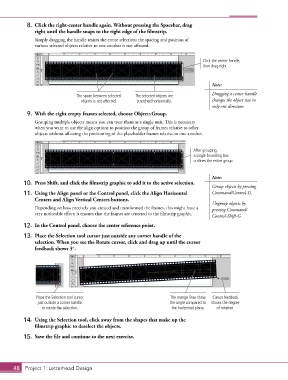
8.  Click the right-center handle again. Without pressing the Spacebar, drag
               right until the handle snaps to the right edge of the filmstrip.

               Simply dragging the handle resizes the entire selection; the spacing and position of
               various selected objects relative to one another is not affected.


                                                                                     Click the center handle,
                                                                                     then drag right.


                                                                                        Note:
                                                                                        Dragging a center handle
                                 The space between selected   The selected objects are
                                  objects is not affected.  stretched horizontally.     changes the object size in
                                                                                        only one direction.
            9.  With the eight empty frames selected, choose Object>Group.

               Grouping multiple objects means you can treat them as a single unit. This is necessary
               when you want to use the align options to position the group of frames relative to other
               objects without affecting the positioning of the placeholder frames relative to one another.


                                                                                 After grouping,
                                                                                 a single bounding box
                                                                                 outlines the entire group.


                                                                                        Note:
           10.  Press Shift, and click the filmstrip graphic to add it to the active selection.
                                                                                        Group objects by pressing
           11.  Using the Align panel or the Control panel, click the Align Horizontal   Command/Control-G.
               Centers and Align Vertical Centers buttons.
                                                                                        Ungroup objects by
               Depending on how precisely you created and transformed the frames, this might have a   pressing Command/
               very noticeable effect; it ensures that the frames are centered to the filmstrip graphic.
                                                                                        Control-Shift-G.
           12.  In the Control panel, choose the center reference point.

           13.  Place the Selection tool cursor just outside any corner handle of the
               selection. When you see the Rotate cursor, click and drag up until the cursor
               feedback shows 3°.


                Place the Selection tool cursor                        The orange lines show   Cursor feedback
                 just outside a corner handle                          the angle compared to   shows the degree
                  to rotate the selection.                              the horizontal plane.  of rotation.

           14.  Using the Selection tool, click away from the shapes that make up the
               filmstrip graphic to deselect the objects.

           15.  Save the file and continue to the next exercise.


       48 Project 1: Letterhead Design

