


Page 28 - CC2017_ID_Look_Inside
P. 28
CreAte A rounded reCtAngle
          In addition to basic rectangles, you can create frames with a number of special corner
          treatments. The Rounded Rectangle tool automatically creates frames with special
          corners, but you can also easily modify the corners of an existing frame to create the
          effect you want.
            1.  With crowe.indd open, make sure the Rectangle tool is active, then zoom
               into the left end of the black rectangle.
                                                                                        Note:
            2.  Press Command/Control, then click away from the existing shape to       To deselect objects,
               deselect it.
                                                                                        you can also choose
               If you don’t deselect the existing shape, the changes you make in the next step would   Edit>Deselect All.
               affect the selected object.
               Pressing Command/Control temporarily switches to the last-used Selection tool   Note:
               (Selection or Direct Selection). This allows you to easily make selections — or, in this   When an object is
               case, deselect an object — without changing the active tool.
                                                                                        selected, changing the fill
               When you click to deselect the active object, be careful that you don’t accidentally click a   and stroke values changes
               white-filled object instead of the empty page or pasteboard area.        those attributes for the
                                                                                        selected object. If you
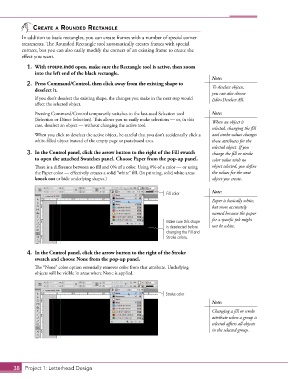
            3.  In the Control panel, click the arrow button to the right of the Fill swatch   change the fill or stroke
               to open the attached Swatches panel. Choose Paper from the pop-up panel.  color value with no
               There is a difference between no fill and 0% of a color. Using 0% of a color — or using   object selected, you define
               the Paper color — effectively creates a solid “white” fill. (In printing, solid white areas   the values for the next
               knock out or hide underlying shapes.)                                    object you create.


                                                                      Fill color        Note:
                                                                                        Paper is basically white,
                                                                                        but more accurately
                                                                                        named because the paper
                                                                                        for a specific job might
                                                                      Make sure this shape
                                                                      is deselected before   not be white.
                                                                      changing the Fill and
                                                                      Stroke colors.


            4.  In the Control panel, click the arrow button to the right of the Stroke
               swatch and choose None from the pop-up panel.
               The “None” color option essentially removes color from that attribute. Underlying
               objects will be visible in areas where None is applied.


                                                                     Stroke color
                                                                                        Note:
                                                                                        Changing a fill or stroke
                                                                                        attribute when a group is
                                                                                        selected affects all objects
                                                                                        in the selected group.


       38 Project 1: Letterhead Design

