


Page 35 - CC2017_ID_Look_Inside
P. 35
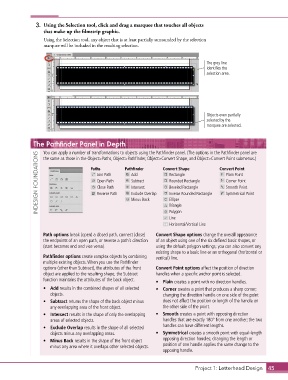
3.  Using the Selection tool, click and drag a marquee that touches all objects
                   that make up the filmstrip graphic.

                   Using the Selection tool, any object that is at least partially surrounded by the selection
                   marquee will be included in the resulting selection.


                                                                                      The gray line
                                                                                      identifies the
                                                                                      selection area.


                                                                                      Objects even partially
                                                                                      selected by the
                                                                                      marquee are selected.


               The Pathfinder Panel in Depth

                   You can apply a number of transformations to objects using the Pathfinder panel. (The options in the Pathfinder panel are
                 INDESIGN FOUNDATIONS  Paths         Pathfinder     Convert Shape           Convert Point
                   the same as those in the Object>Paths, Object>Pathfinder, Object>Convert Shape, and Object>Convert Point submenus.)

                                                       Add
                                                                       Rectangle
                                         Join Path
                                                                                              Plain Point
                                                       Subtract
                                         Open Path
                                                                                              Corner Point
                                                                       Rounded Rectangle
                                         Close Path
                                                                                              Smooth Point
                                                                       Beveled Rectangle
                                                       Intersect
                                                       Exclude Overlap
                                                                       Inverse Rounded Rectangle
                                                                                              Symmetrical Point
                                         Reverse Path
                                                       Minus Back
                                                                       Ellipse
                                                                       Triangle
                                                                       Polygon
                                                                       Line
                                                                       Horizontal/Vertical Line
                   Path options break (open) a closed path, connect (close)   Convert Shape options change the overall appearance
                   the endpoints of an open path, or reverse a path’s direction   of an object using one of the six defined basic shapes, or
                   (start becomes end and vice versa).           using the default polygon settings; you can also convert any
                                                                 existing shape to a basic line or an orthogonal (horizontal or
                   Pathfinder options create complex objects by combining   vertical) line.
                   multiple existing objects. When you use the Pathfinder
                   options (other than Subtract), the attributes of the front   Convert Point options affect the position of direction
                   object are applied to the resulting shape; the Subtract   handles when a specific anchor point is selected.
                   function maintains the attributes of the back object.
                                                                 •  Plain creates a point with no direction handles.
                   •  Add results in the combined shapes of all selected   •  Corner creates a point that produces a sharp corner;
                      objects.                                      changing the direction handle on one side of the point
                   •  Subtract returns the shape of the back object minus   does not affect the position or length of the handle on
                      any overlapping area of the front object.     the other side of the point.
                   •  Intersect results in the shape of only the overlapping   •  Smooth creates a point with opposing direction
                      areas of selected objects.                    handles that are exactly 180° from one another; the two
                   •  Exclude Overlap results in the shape of all selected   handles can have different lengths.
                      objects minus any overlapping areas.       •  Symmetrical creates a smooth point with equal-length
                   •  Minus Back results in the shape of the front object   opposing direction handles; changing the length or
                      minus any area where it overlaps other selected objects.  position of one handle applies the same change to the
                                                                    opposing handle.


                                                                                  Project 1: Letterhead Design  45

