


Page 62 - Adobe Indesign CC 2020
P. 62
Working with Adobe Fonts

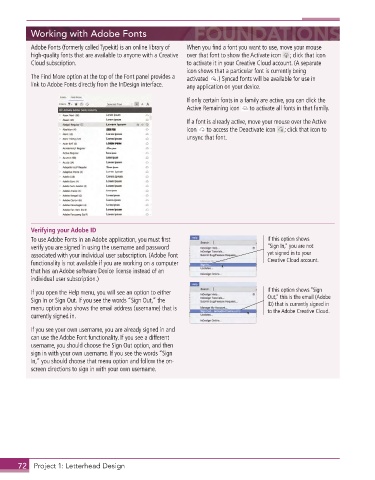
          Adobe Fonts (formerly called Typekit) is an online library of   When you find a font you want to use, move your mouse
          high-quality fonts that are available to anyone with a Creative   over that font to show the Activate icon   ; click that icon
          Cloud subscription .                            to activate it in your Creative Cloud account . (A separate
                                                          icon shows that a particular font is currently being
          The Find More option at the top of the Font panel provides a   activated    .) Synced fonts will be available for use in
          link to Adobe Fonts directly from the InDesign interface .   any application on your device .

                                                          If only certain fonts in a family are active, you can click the
                                                          Active Remaining icon    to activate all fonts in that family .
                                                          If a font is already active, move your mouse over the Active
                                                          icon    to access the Deactivate icon   ; click that icon to
                                                          unsync that font .


          Verifying your Adobe ID
          To use Adobe Fonts in an Adobe application, you must first               If this option shows
          verify you are signed in using the username and password                 “Sign In,” you are not
          associated with your individual user subscription . (Adobe Font          yet signed in to your
          functionality is not available if you are working on a computer          Creative Cloud account.
          that has an Adobe software Device license instead of an
          individual user subscription .)

          If you open the Help menu, you will see an option to either              If this option shows “Sign
          Sign In or Sign Out . If you see the words “Sign Out,” the               Out,” this is the email (Adobe
                                                                                   ID) that is currently signed in
          menu option also shows the email address (username) that is              to the Adobe Creative Cloud.
          currently signed in .
          If you see your own username, you are already signed in and
          can use the Adobe Font functionality . If you see a different
          username, you should choose the Sign Out option, and then
          sign in with your own username . If you see the words “Sign
          In,” you should choose that menu option and follow the on-
          screen directions to sign in with your own username .


       72  Project 1: Letterhead Design

