


Page 58 - Adobe Indesign CC 2020
P. 58
6.  Choose the Type tool, and click inside the repositioned text frame to place
              the insertion point.
           7.  Choose Edit>Select All to select all text in the frame.
               Character formatting such as the font, style, size, and fill color apply only to selected
               characters.
               In addition to using the Select All command to select all text in a story, you have a
               number of options for selecting type characters in a frame:              Note:
                 •  Select specific characters by clicking with the Type tool and dragging.  When a type frame is se-
                 •  Double-click a word to select the entire word.                      lected with the Selection
                 •  Triple-click a word to select the entire line containing the word.  tool, you can double-
                                                                                        click inside the frame to
                 •  Quadruple-click a word to select the entire paragraph containing the word.  place the insertion point
                 •  Press Shift-Right Arrow or Shift-Left Arrow to select the character to the   inside that frame. The
                    immediate right or left of the insertion point, respectively.       Type tool automatically
                 •  Press Shift-Up Arrow or Shift-Down Arrow to select all characters up to the   becomes active.
                    same position as the insertion point in the previous or next line, respectively.
                 •  Press Command/Control-Shift-Right Arrow or Command/Control-Shift-Left
                    Arrow to select the word immediately to the right or left of the insertion point,
                    respectively.
                 •  Press Command/Control-Shift-Up Arrow or Command/Control-Shift-Down
                    Arrow to select the rest of paragraph immediately before or after the insertion
                    point, respectively.

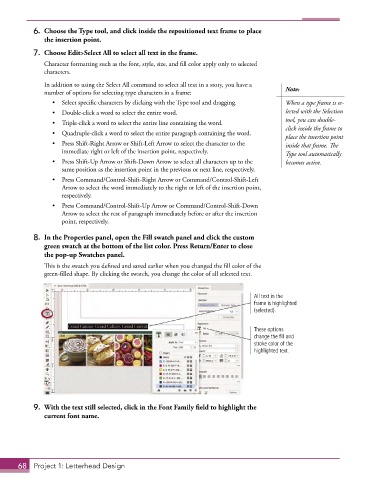
           8.  In the Properties panel, open the Fill swatch panel and click the custom
              green swatch at the bottom of the list color. Press Return/Enter to close
              the pop-up Swatches panel.
               This is the swatch you defined and saved earlier when you changed the fill color of the
               green-filled shape. By clicking the swatch, you change the color of all selected text.


                                                                               All text in the
                                                                               frame is highlighted
                                                                               (selected).


                                                                               These options
                                                                               change the fill and
                                                                               stroke color of the
                                                                               highlighted text.


           9.  With the text still selected, click in the Font Family field to highlight the
              current font name.


       68  Project 1: Letterhead Design

