


Page 60 - CS6_AI_Look_Inside.pdf
P. 60
use measurements to adjust your artwork
               Depending on the type of work you do, Illustrator drawings can be entirely freeform,
               precisely measured, or a combination of the two (as in this case). The Measure tool
               evaluates different dimensional attributes of objects on the page. As you might expect
               from the name, the Measure tool acts like a digital tape measure. In addition to sizes
               and positions, the tool also measures angles — an important feature for technical
               drawing that requires precise detail.

                 1.  With icons.ai open, choose the Measure tool in the Tools panel (nested
                    under the Eyedropper tool).

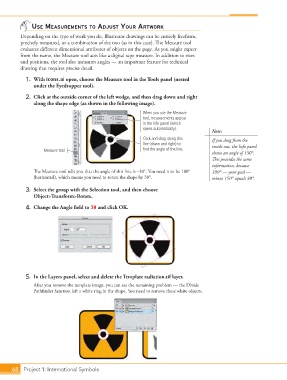
                 2.  Click at the outside corner of the left wedge, and then drag down and right
                    along the shape edge (as shown in the following image).

                                                                 When you use the Measure
                                                                 tool, measurements appear
                                                                 in the Info panel (which
                                                                 opens automatically).
                                                                                             Note:
                                                                 Click and drag along this   If you drag from the
                                                                 line (down and right) to    inside out, the Info panel
                        Measure tool                             find the angle of the line.
                                                                                             shows an angle of 150°.
                                                                                             This provides the same
                                                                                             information, because
                    The Measure tool tells you that the angle of this line is –30°. You need it to be 180°   180° — your goal —
                    (horizontal), which means you need to rotate the shape by 30°.           minus 150° equals 30°.

                 3.  Select the group with the Selection tool, and then choose
                    Object>Transform>Rotate.

                 4.  Change the Angle field to 30 and click OK.


                 5.  In the Layers panel, select and delete the Template radiation.tif layer.

                    After you remove the template image, you can see the remaining problem — the Divide
                    Pathfinder function left a white ring in the shape. You need to remove these white objects.


           68 Project 1: International Symbols

