


Page 59 - CS6_AI_Look_Inside.pdf
P. 59
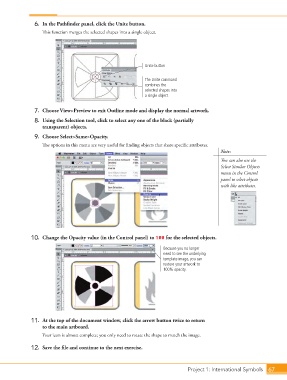
6.  In the Pathfinder panel, click the Unite button.
                        This function merges the selected shapes into a single object.


                                                                  Unite button

                                                                  The Unite command
                                                                  combines the
                                                                  selected shapes into
                                                                  a single object.


                    7.  Choose View>Preview to exit Outline mode and display the normal artwork.
                    8.  Using the Selection tool, click to select any one of the black (partially
                        transparent) objects.

                    9.  Choose Select>Same>Opacity.
                        The options in this menu are very useful for finding objects that share specific attributes.
                                                                                                 Note:

                                                                                                 You can also use the
                                                                                                 Select Similar Objects
                                                                                                 menu in the Control
                                                                                                 panel to select objects
                                                                                                 with like attributes.


                   10.  Change the Opacity value (in the Control panel) to 100 for the selected objects.

                                                                         Because you no longer
                                                                         need to see the underlying
                                                                         template image, you can
                                                                         restore your artwork to
                                                                         100% opacity.


                   11.  At the top of the document window, click the arrow button twice to return
                        to the main artboard.
                        Your icon is almost complete; you only need to rotate the shape to match the image.

                   12.  Save the file and continue to the next exercise.


                                                                                   Project 1: International Symbols  67

