


Page 56 - CS6_AI_Look_Inside.pdf
P. 56
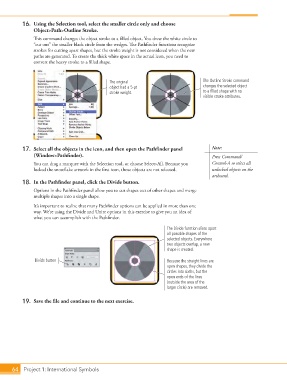
16.  Using the Selection tool, select the smaller circle only and choose
                    Object>Path>Outline Stroke.
                    This command changes the object stroke to a filled object. You drew the white circle to
                    “cut out” the smaller black circle from the wedges. The Pathfinder functions recognize
                    strokes for cutting apart shapes, but the stroke weight is not considered when the new
                    paths are generated. To create the thick white space in the actual icon, you need to
                    convert the heavy stroke to a filled shape.


                                                   The original                           The Outline Stroke command
                                                   object had a 5-pt                      changes the selected object
                                                   stroke weight.                         to a filled shape with no
                                                                                          visible stroke attributes.


                17.  Select all the objects in the icon, and then open the Pathfinder panel   Note:
                    (Window>Pathfinder).                                                     Press Command/
                    You can drag a marquee with the Selection tool, or choose Select>All. Because you   Control-A to select all
                    locked the snowflake artwork in the first icon, those objects are not selected.  unlocked objects on the
                                                                                             artboard.
                18.  In the Pathfinder panel, click the Divide button.
                    Options in the Pathfinder panel allow you to cut shapes out of other shapes and merge
                    multiple shapes into a single shape.
                    It’s important to realize that many Pathfinder options can be applied in more than one
                    way. We’re using the Divide and Unite options in this exercise to give you an idea of
                    what you can accomplish with the Pathfinder.

                                                                           The Divide function slices apart
                                                                           all possible shapes of the
                                                                           selected objects. Everywhere
                                                                           two objects overlap, a new
                                                                           shape is created.

                     Divide button                                         Because the straight lines are
                                                                           open shapes, they divide the
                                                                           circles into sixths, but the
                                                                           open ends of the lines
                                                                           (outside the area of the
                                                                           larger circle) are removed.


                19.  Save the file and continue to the next exercise.


           64 Project 1: International Symbols

