


Page 58 - CS6_AI_Look_Inside.pdf
P. 58
work in isolation mode
               Groups can be invaluable when you need to treat multiple items as a single object.
               When items are grouped, it is easy to move and manipulate the entire group as a single
               object. In many cases, however, you will need to make changes to only part of a group.
               Depending on the complexity of the file, this can be very difficult without first breaking
               apart the group (“ungrouping”). Illustrator’s Isolation mode offers a convenient work-
               space, where you can work with grouped objects as if they were stand-alone objects.

                 1.  With icons.ai open, use the Selection tool to double-click any of the shapes
                    in the radiation icon to enter Isolation mode.

                    When you use the Pathfinder panel, the resulting shapes are automatically grouped.
                    Because all of these shapes make up the icon artwork, it’s a good idea to leave them grouped.
                    Isolation mode allows you to work with the constituent objects without ungrouping.

                 2.  Using the Selection tool, click the wedge shape in the top-left area of the
                    icon, and then press Delete.


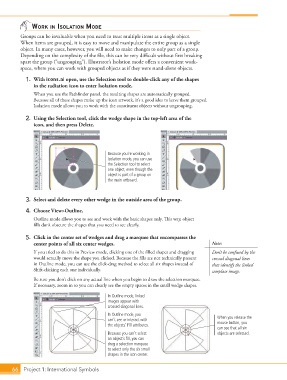
                                                   Because you’re working in
                                                   Isolation mode, you can use
                                                   the Selection tool to select
                                                   one object, even though the
                                                   object is part of a group on
                                                   the main artboard.


                 3.  Select and delete every other wedge in the outside area of the group.
                 4.  Choose View>Outline.

                    Outline mode allows you to see and work with the basic shapes only. This way, object
                    fills don’t obscure the shapes that you need to see clearly.

                 5.  Click in the center set of wedges and drag a marquee that encompasses the
                    center points of all six center wedges.                                  Note:
                    If you tried to do this in Preview mode, clicking one of the filled shapes and dragging   Don’t be confused by the
                    would actually move the shape you clicked. Because the fills are not technically present   crossed diagonal lines
                    in Outline mode, you can use the click-drag method to select all six shapes instead of   that identify the linked
                    Shift-clicking each one individually.                                    template image.
                    Be sure you don’t click on any actual line when you begin to draw the selection marquee.
                    If necessary, zoom in so you can clearly see the empty spaces in the small wedge shapes.
                                                   In Outline mode, linked
                                                   images appear with
                                                   crossed diagonal lines.
                                                   In Outline mode, you
                                                   can’t see or interact with                  When you release the
                                                   the objects’ Fill attributes.               mouse button, you
                                                                                               can see that all six
                                                   Because you can’t select                    objects are selected.
                                                   an object’s fill, you can
                                                   drag a selection marquee
                                                   to select only the six small
                                                   shapes in the icon center.


           66 Project 1: International Symbols

