


Page 36 - Adobe Dream Viewer 2021
P. 36
Create Document Titles for Individual Pages
         Appropriate document titles are an important concern for both search engines and
         site visitors. While the document title does not appear within the body of a web
         page, it does appear in the title bar of the browser, as the default name of the page in
         the Bookmarks or Favorites list, and as the page name in search-engine results pages.
             Page titles should be relatively short — around 70 characters or so — to avoid
         being truncated in various locations (such as a user’s Bookmarks/Favorites list). You
         should separate the components of the title with some type of divider, such as a
         colon (:) or pipe (|) character.
             In this exercise, you add document titles to the new pages to increase search
         engine rankings, and improve usability in search engines and bookmarks. You also
         learn to use the Find and Replace function, which can greatly reduce the amount of
         effort required to create all of the document titles.

           1.  With the FB Bistro site open in the Files panel, open index.html.

           2.  Click the Split button in the Document toolbar to show both the Code
              and Design views at once.

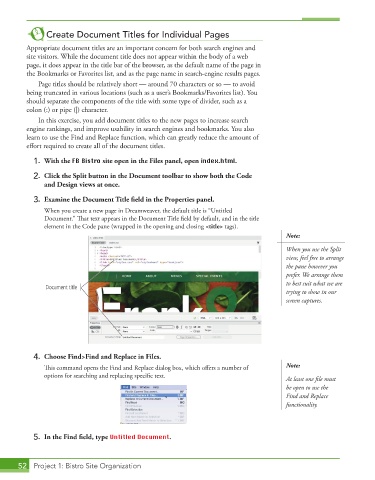
           3.  Examine the Document Title field in the Properties panel.
               When you create a new page in Dreamweaver, the default title is “Untitled
               Document.” That text appears in the Document Title field by default, and in the title
               element in the Code pane (wrapped in the opening and closing <title> tags).
                                                                                        Note:

                                                                                        When you use the Split
                                                                                        view, feel free to arrange
                                                                                        the pane however you
                                                                                        prefer. We arrange them
                                                                                        to best suit what we are
               Document title
                                                                                        trying to show in our
                                                                                        screen captures.


           4.  Choose Find>Find and Replace in Files.
               This command opens the Find and Replace dialog box, which offers a number of   Note:
               options for searching and replacing specific text.
                                                                                        At least one file must
                                                                                        be open to use the
                                                                                        Find and Replace
                                                                                        functionality.


           5.  In the Find field, type Untitled Document.


       52  Project 1: Bistro Site Organization

