


Page 40 - Adobe Dream Viewer 2021
P. 40
Hide Files from a Web Server

         As you learned when you created the folders for the new site, not all of the new files are


         meant to be uploaded to the web server — specifically, the Photoshop file in the resourc-
         es folder. (You should, however, store such files locally as source files or documentation


         for the work you completed.) Dreamweaver provides a very useful function — called

         cloaking — that allows you to prevent certain files from uploading. You can cloak an
         individual file, all files with the same extension (for example, all native Photoshop files


         with the PSD extension), or a folder (which also cloaks all files in that folder).
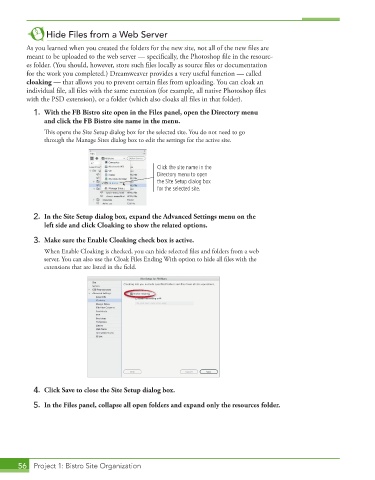
          1.  With the FB Bistro site open in the Files panel, open the Directory menu
              and click the FB Bistro site name in the menu.

               This opens the Site Setup dialog box for the selected site. You do not need to go
               through the Manage Sites dialog box to edit the settings for the active site.
                                                 Click the site name in the
                                                 Directory menu to open
                                                 the Site Setup dialog box
                                                 for the selected site.


          2.  In the Site Setup dialog box, expand the Advanced Settings menu on the
              left side and click Cloaking to show the related options.

          3.  Make sure the Enable Cloaking check box is active.

               When Enable Cloaking is checked, you can hide selected files and folders from a web
               server. You can also use the Cloak Files Ending With option to hide all files with the

               extensions that are listed in the field.


          4.  Click Save to close the Site Setup dialog box.
          5.  In the Files panel, collapse all open folders and expand only the resources folder.


       56  Project 1: Bistro Site Organization

