


Page 31 - Adobe Dream Viewer 2021
P. 31
Adjust Relative Link Paths
            A path is the route taken through the folder structure to link one page to another.
            By default, Dreamweaver uses relative paths when creating links (the application
            refers to this as “relative to the document”). The alternative is to create absolute
            paths (“relative to the site”), but unless your site is running on a web server, you can’t
            test links that use absolute paths.
               As an example, consider creating a link from index.html to about.html, both of   ROOT
            which reside in the root folder (as shown in the figure to the right). In this case, the     index.html
            source and destination pages are in the same folder. The relative-path link simply     about.html
            states the file name of the destination page:                               events.html
                                                                                        MENUS
               <a href="menu2.html">Link Text</a>                                         menu1.html
                                                                                          menu2.html
               When you drill down into nested levels of folders, the source folder is not
            identified in the path — the link automatically works starting from the location of
            the link. To link from index.html to menu1.html, for example, you have to include
            the nested menus folder in the path:
               <a href="menus/menu1.html">Link Text</a>

               When the link is in an upward direction, the ../ notation says, “go up one
            folder.” To link from menu1.html to index.html in the site root folder means that
            the link needs to take the visitor up one folder level:

               <a href="../index.html">Link Text</a>

               Each step up in the folder structure requires another command to “go one step
            up” in the folder structure. If you had another level of nesting inside the menus
            folder, for example, a link would have to take the visitor up two folder levels to
            return to the main index page:
               <a href="../../index.html">Link Text</a>                                    Note:

                                                                                           The Regular Design
              1.  With the FB Bistro site open in the Files panel, open menu1.html.        view does not accurately
                 In this exercise, you are going to adjust the various links so they work properly on all   render the CSS that
                 pages in the site.                                                        is used to format page
                                                                                           elements, so you might
              2.  Double-click the word HOME at the top of the page to select that element.  notice that various

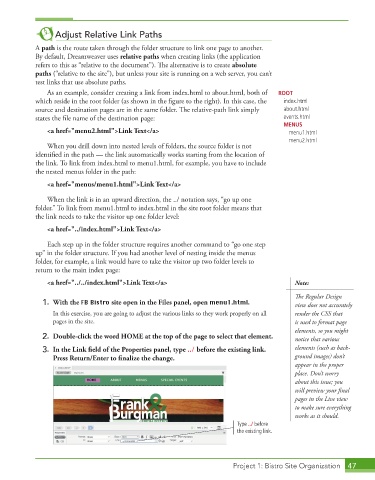
              3.  In the Link field of the Properties panel, type ../ before the existing link.   elements (such as back-
                 Press Return/Enter to finalize the change.                                ground images) don’t
                                                                                           appear in the proper
                                                                                           place. Don’t worry
                                                                                           about this issue; you
                                                                                           will preview your final
                                                                                           pages in the Live view
                                                                                           to make sure everything
                                                                                           works as it should.
                                                                         Type ../ before
                                                                         the existing link.


                                                                        Project 1: Bistro Site Organization  47

