


Page 26 - Adobe Dream Viewer 2021
P. 26
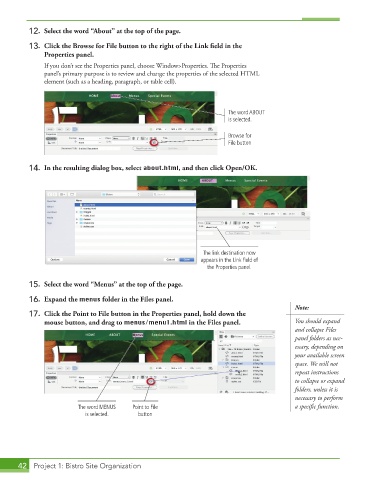
12.  Select the word “About” at the top of the page.

          13.  Click the Browse for File button to the right of the Link fi eld in the
              Properties panel.

               If you don’t see the Properties panel, choose Window>Properties. The Properties
               panel’s primary purpose is to review and change the properties of the selected HTML
               element (such as a heading, paragraph, or table cell).


                                                                       The word ABOUT
                                                                       is selected.

                                                                       Browse for
                                                                       File button


          14.  In the resulting dialog box, select about.html, and then click Open/OK.


                                                               The link destination now
                                                              appears in the Link field of
                                                                the Properties panel.

          15.  Select the word “Menus” at the top of the page.

          16.  Expand the menus folder in the Files panel.
                                                                                           Note:
          17.  Click the Point to File button in the Properties panel, hold down the
              mouse button, and drag to menus/menu1.html in the Files panel.               You should expand
                                                                                           and collapse Files
                                                                                           panel folders as nec-
                                                                                           essary, depending on
                                                                                           your available screen
                                                                                           space. We will not
                                                                                           repeat instructions
                                                                                           to collapse or expand
                                                                                           folders, unless it is
                                                                                           necessary to perform

                         The word MENUS   Point to File                                    a specific function.
                           is selected.    button


       42  Project 1: Bistro Site Organization

