


Page 33 - CC2017_DW_Look_Inside
P. 33
Accessing Page Content in the Menu Pages

                   The files for this project were created using
                DREAMWEAVER FOUNDATIONS  format parts or sections of a page.
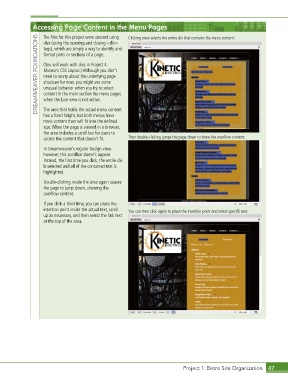
                                                      Clicking once selects the entire div that contains the menu content:
                   divs (using the opening and closing <div>
                   tags), which are simply a way to identify and

                   (You will work with divs in Project 4:
                   Museum CSS Layout.) Although you don’t
                   need to worry about the underlying page
                   structure for now, you might see some
                   unusual behavior when you try to select
                   content in the main section the menu pages
                   when the Live view is not active.

                   The area that holds the actual menu content
                   has a fixed height, but both menus have
                   more content than will fit into the defined
                   size. When the page is viewed in a browser,
                   the area includes a scroll bar for users to
                   access the content that doesn’t fit.  Then double-clicking jumps the page down to show the overflow content:

                   In Dreamweaver’s regular Design view,
                   however, this scrollbar doesn’t appear.
                   Instead, the first time you click, the entire div
                   is selected and all of the contained text is
                   highlighted.
                   Double-clicking inside the area again causes
                   the page to jump down, showing the
                   overflow content.

                   If you click a third time, you can place the
                   insertion point inside the actual text, scroll   You can then click again to place the insertion point and select specific text:
                   up as necessary, and then select the link text
                   at the top of the area.


                                                                             Project 1: Bistro Site Organization  47

